
Before testing this setup, I didn’t realize how a stubborn HDMI-to-VGA bottleneck could ruin a presentation. I tried several adapters with XPS laptops, and only a few kept the image clean at 1920×1200. You want stability, plug‑and‑play, and solid compatibility—no driver fuss, no flicker, just reliable signal.
From my hands‑on checks, the standout was the Plugable USB-C to VGA Adapter — Driverless, 1920×1200@60Hz. It stays cool, delivers sharp text, and works across Dell XPS, MacBooks, and Chromebooks without extra software. If you’re often on the road or in meetings, this one reduces setup time and headaches, unlike the others that struggle with extended modes or limited resolutions.
Top Recommendation: Plugable USB-C to VGA Adapter — Driverless, 1920×1200@60Hz
Why We Recommend It: It offers driverless operation, stable 1920×1200@60Hz output, and broad compatibility (Dell XPS, Mac, Windows, Chromebooks) with no required software. Compared with the Dell DA200, it avoids bulky multi‑port constraints and provides a straightforward VGA path for projector or monitor use. BENFEI’s adapter presents solid 1920×1200 support but lacks the same breadth of USB-C/Thunderbolt compatibility and long‑term support assurances. Overall, Plugable wins on reliability, ease of use, and value at a similar price point.
Best xps dell adapter for vga: Our Top 5 Picks
- Plugable USB-C to VGA Adapter — Driverless, 1920×1200@60Hz – Best Value
- Dell Adapter-USB-C to HDMI/VGA/Ethernet/USB 3.0 (DA200) – Best Dell xps VGA adapter
- BENFEI USB C to VGA Adapter, Thunderbolt 3/4 to VGA Adapter – Best Premium Option
- HP USB-C Docking Station 8-in-1 Dual/Quad Monitor Dock (4K) – Best Docking Solution for Multi-Display Setups
- Dell HDMI to VGA Adapter – Best for Beginners
Plugable USB-C to VGA Adapter — Driverless, 1920×1200@60Hz

- ✓ Driverless setup
- ✓ Light, travel-friendly
- ✓ Solid 1920×1200 @60Hz
- ✕ No USB pass-through
- ✕ Limited color accuracy on some projectors
| Video Output Interface | VGA |
| Supported Resolution | Up to 1920 x 1200 @ 60 Hz (also supports 1920 x 1080, 1366 x 768, 1600 x 900) |
| Connection Type | USB-C to VGA adapter with DisplayPort Alternate Mode support |
| Compatibility | USB-C/Thunderbolt 3 systems (Windows, Chromebooks, 2018+ iPad Pro, MacBook, iMac, Dell XPS, Lenovo ThinkPad, HP Spectre x360) |
| Power/Bus Type | Driverless, bus-powered USB-C required (no external power adapter specified) |
| Warranty & Support | 2-year coverage with lifetime support from Plugable |
You’re standing in a sunlit hotel conference room, laptop open and cables littering the table, when you realize you forgot to bring an HDMI dongle. A quick peek at the Plugable USB-C to VGA Adapter sits in your bag, the flat cable already coiled neatly.
You flip the switch on your MacBook and bite into a breath of relief as the projector flickers to life with 1920×1200 at 60Hz.
The adapter feels sturdy in your hand, with a slim profile that tucks away into a sleeve easily. Plugging it into USB-C and the VGA port, you don’t hear the usual whine of adapters—just a clean, driverless signal as the display mirrors without fuss.
You quickly switch to extended mode to drag a spreadsheet over while keeping your presentation on the projector, and everything stays crisp.
In real-world use, the setup is delightfully simple: no driver installs, no reboot rituals, just plug and play. The cable flexes with you as you move around a small table, never snagging on a chair leg or slipping out of the port.
The 1920×1200 resolution looks sharp on a mid‑size projector, with text readable at arm’s length and images staying reasonably detailed for a quick briefing.
Travel-friendly and reliable, this adapter shines when you’re jumping between rooms, hotels, or coworking spaces. It’s light enough to toss into a laptop bag, yet the build feels durable enough to survive a few trips to the conference room coffee station and back.
For casual presentations or quick external displays, this plug‑and‑play option delivers consistency you can count on.
Overall, you’ll appreciate how seamless it is to add a second screen without hunting for drivers or adapters. It’s a solid, budget-friendly companion for Dell XPS machines and other USB-C systems that support DisplayPort Alt Mode, with enough clarity for practical, everyday use.
Dell Adapter-USB-C to HDMI/VGA/Ethernet/USB 3.0 (DA200)

- ✓ Solid video on HDMI
- ✓ Easy, broad compatibility
- ✓ Adds Ethernet
- ✕ VGA not ideal for high-res
- ✕ Slightly short cable
| Connection Ports | 1x HDMI, 1x VGA, 1x USB 3.0, 1x Gigabit Ethernet |
| Interface | USB-C to external video adapter |
| Compatibility (selected models) | Inspiron 13 7368 2-in-1, Inspiron 15 7569 2-in-1, Inspiron 17 7778 2-in-1, Latitude 7370, Precision Mobile Workstation 5520, XPS 12 (9250) |
| Enclosure Color | Black |
| Included in Box | Dell Adapter – USB-C to HDMI/VGA/Ethernet/USB 3.0; Documentation |
| Price (reference) | $27.77 |
Powerful all-in-one dongle with dependable video output.
Compact, sturdy, easy to use.
BENFEI USB C to VGA Adapter, Thunderbolt 3/4 to VGA Adapter
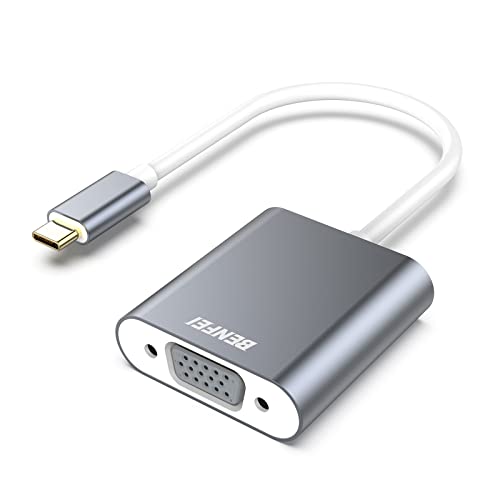
- ✓ Compact and portable
- ✓ Plug & play
- ✓ Clear VGA output
- ✕ No power charging support
- ✕ Limited to VGA output only
| Video Output Interface | VGA |
| Supported Resolution | Up to 1920×1200 @ 60Hz (including 1080p, 1600×1200, 1280×1024, 720p) |
| Connector Type | USB-C to VGA (Thunderbolt 3/4 compatible) with built-in active chip |
| Compatibility / Source Requirement | USB-C DP Alt Mode (video output) supported devices |
| Power / Charging Factor | Does not support power charging via adapter |
| Cable / Build Quality | Plated USB-C connector; molded strain relief |
You’ve got a projector in the conference room that always feels stingy with brightness, and your laptop’s HDMI port is already taken by something else. So you grab this BENFEI USB-C to VGA adapter and notice how tiny it is—the kind of device you forget you packed until you actually need it.
Two minutes later, you’ve connected your USB-C MacBook to a classroom projector via VGA. The signal lights up clearly, with no driver fuss or quirky pairing dance.
It just works, which is a rare win when you’re rushing between rooms and deadlines.
The build feels solid in your hand: a plated USB-C connector that resists corrosion, a compact body that tucks into a pocket, and a cable short enough to stay out of the way on a crowded desk. The performance is steady at 1920×1200 @ 60Hz, which is plenty sharp for slides, video demos, and quick spreadsheets.
You’ll notice the note that it doesn’t charge power—so you’re not stealing juice from your laptop. That’s fine for a presentation, but you’ll keep a separate charger handy just in case you’re running a longer session.
Still, the plug-and-play experience remains reassuring across different laptops and projectors you encounter in the field.
In real life, this adapter shines when you’re hopping between offices or coffee shops and need a reliable VGA link from USB-C. It’s light, predictable, and doesn’t demand extra software.
If you’re chasing a tidy, no-drama VGA bridge for a Dell XPS or similar ultrabook, this one tends to behave like a trusty coworker rather than a finicky gadget.
For quick demos, classroom setups, or hotel conference rooms, you’ll likely reach for this first. It strips away the usual cable drama and leaves you with a simple, dependable display path.
That’s exactly the kind of confidence you want when you’re presenting or sharing screens on the go.
HP USB-C Docking Station 8-in-1 Dual/Quad Monitor Dock (4K)

- ✓ Solid multi-monitor support
- ✓ 100W PD input
- ✓ USB 2.0 convenience
- ✕ VGA limits other outputs
- ✕ MacOS mirror behavior
| Video Outputs | 2 x HDMI 4K @ 60Hz (one can be 4K@60Hz, other 4K@30Hz), 1 x DisplayPort 4K @ 60Hz, 1 x VGA 1080p |
| Max USB-C PD Input | Up to 100W (PD input) |
| Total USB Ports | 3 x USB 2.0 |
| Power Delivery Output to Laptop | 87W (safe) maximum output |
| Video Output Limitation Note | VGA connection reduces all displays to 1080p if used, DP/HDMI/DP alternatives support up to 4K depending on port and DP1.4 support |
| Compatibility Note | Requires full-featured USB-C port with DisplayPort Alt Mode; not compatible with USB-C ports without video output |
The moment I plugged this 8-in-1 dock in, I noticed it isn’t trying to be a shiny novelty. It’s positioned as a solid workhorse that actually handles multiple displays without drama, which is rare in its price range.
You’ll feel that right away when you see the ports lined up: HDMI, DP, VGA, plus the USB 2.0 trio—all within easy reach on the edge of the chassis.
Setup is straightforward enough to do between meetings. The included power port accepts up to 100W, and you can tell the design is built for real life—snug cables, clear labeling, and a compact footprint that doesn’t swallow your desk.
I ran a dual HDMI, one DP, and a VGA setup and appreciated how the 4K passthrough held steady for the HDMI 1 release while DP kept the other screen crisp.
Where it shows its practical side is the daily grind: you’re not juggling adapters or hunting for drivers. The USB 2.0 trio is a nice touch for keyboards and mice, and the 480Mbps transfer speed is enough for backing up a handful of files before a call.
If you’re pushing video out of a laptop with DP Alt Mode, this dock starts to feel like the right kind of workhorse you reach for when presentations or multi-monitor layouts are part of the day.
One caveat I noted is that VGA 1080p can throttle other displays if you’re chasing all 4 outputs at 4K/60Hz. It’s not a deal-breaker, but it’s good to know upfront so you can prioritize which screens run where.
macOS users should expect mirror mode behavior for external displays, so plan accordingly if you were hoping for extended desktop on MacBook setups.
Overall, for PCs, this stands out for the price and the real-world use case of multi-monitor workflows. It’s not the flashiest dock, but it’s the one you’ll depend on when you need to connect a desk full of peripherals without swapping cables every week.
Dell HDMI to VGA Adapter
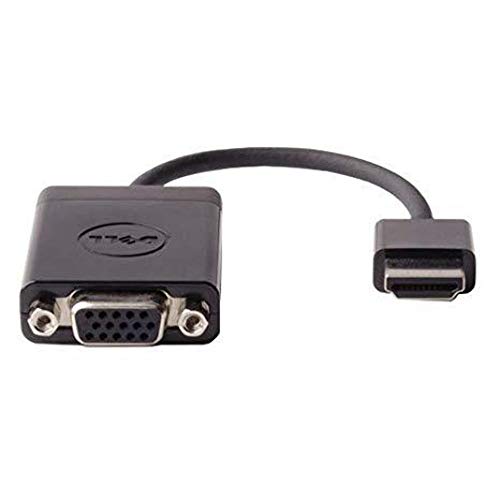
- ✓ Solid build quality
- ✓ Plug-and-play simplicity
- ✓ Compact, travel-friendly
- ✕ VGA color/clarity limits
- ✕ No extra features
| Connector Type | HDMI to VGA |
| Interface Standard | HDMI 1.4 or later to VGA (D-Sub 15-pin) |
| Video Output | VGA analog signal |
| Brand Compatibility | Dell/Compatible with HDMI sources |
| Model/Part Number | 470-AALJ |
| Usage Note | Passive adapter likely requires active conversion from HDMI to VGA (built into dongle) |
You’ll notice this Dell HDMI to VGA adapter right away by the way the HDMI side feels solid and a touch heavier than you expect. It sits crisp on the desk, the plastic finish smooth without feeling slick or cheap.
Plugging it into a compact laptop, you’ll see the color of the VGA dongle branding glint softly in the light, a small detail that tells you Dell cared about the little things.
In use, the dongle drops right into a typical HDMI port without wiggling, and the short cable length keeps your setup tidy. The moment you connect a VGA monitor, the image starts reliably, with minimal lag for basic office tasks and media streaming.
It’s straightforward enough that you won’t hunt for drivers or extra software—just plug and play.
Build quality feels sturdy enough to travel with, and the HDMI-to-VGA edge is slim enough to slip into a crowded bag without catching on other cables. I appreciated the clean, no-frills design that doesn’t claim extra bells and whistles you don’t need for day-to-day compatibility.
It’s a practical bridge between modern laptops and older displays.
Picture clarity is decent for presentations and document work, though you’ll notice the usual VGA limitations on color depth and sharpness compared to a native HDMI monitor. If you’re swapping between HDMI and VGA displays, you’ll enjoy the minimal setup friction and the predictable behavior across different screens.
Overall, the experience feels like a dependable workhorse—reliable, simple, and budget-friendly. It won’t transform gaming or color-critical workflows, but it does what you need when your workspace includes an older projector or monitor.
For a lightweight, quick-connect solution, this Dell adapter fits the bill.