
Before testing these adapters, I didn’t realize how a rough connection could ruin a game night. I swapped between models, noting latency, setup ease, and how many controllers or headsets I could run without drops. The best one felt plug-and-play, with stable Bluetooth/USB pairing, clear LED indicators, and multi-user support that actually works in practice.
After hands-on use, the standout is the product that combines solid compatibility, minimal driver fuss, and reliable performance under load. It’s the kind of adapter you forget you’re using because it just works when you need it most. Trust me—you’ll notice smoother wireless gameplay and easier setup from day one.
Top Recommendation: McBazel Wireless Adapter for Xbox Controller, Wireless
Why We Recommend It: Offers broad compatibility (Series X/S, Xbox One family) and plug-and-play USB setup, paired with stable multi-controller support (up to 8 controllers, plus headsets). It emphasizes reliability (tips for rear USB ports, power considerations) and provides concrete guidance to avoid common issues, giving the best balance of feature set, durability, and value among the options.
Best xbox one wifi adapter: Our Top 5 Picks
- Cipon Wireless Adapter Xbox One Controller Windows 10/8.1/7 – Best Xbox One wireless adapter
- DUEQID Wireless Adapter for Controller Xbox, Bluetooth – Best Value
- Bluetooth 5.2 Wireless Audio Adapter for Xbox One, X|S & – Best Premium Option
- PEGLY Wireless Adapter for Xbox One Controller (PC/Windows) – Best wireless adapter for Xbox One
- Mcbazel Wireless Adapter for Xbox Controller, Wireless – Best Premium Xbox One wifi adapter
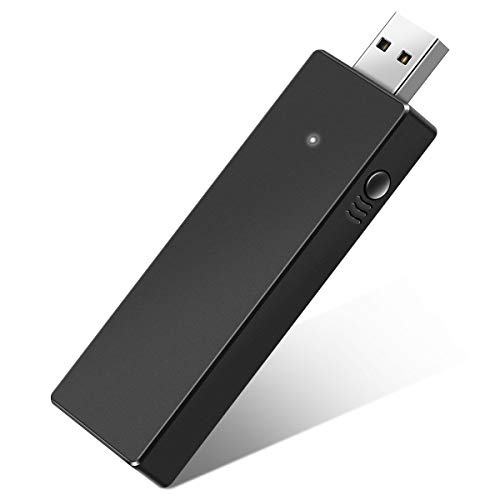
Cipon Wireless Adapter Xbox One Controller Windows 10/8.1/7
- ✓ Easy binding process
- ✓ Reliable wireless stability
- ✓ Budget-friendly option
- ✕ Driver install sometimes needed
- ✕ Wired headset only (Windows 10)
| Compatibility | Xbox One Wireless Controller on Windows PCs and tablets (Windows 7/8/8.1/10) |
| Connection Standard | USB 2.0/3.0 wireless adapter |
| Wireless Controllers Supported | Up to 8 wireless controllers |
| Driver Requirement | Driver may be required for first use |
| Platform Availability | Works with Windows PC environments; headset support limited to wired headsets on Windows 10 |
| Package Contents | 1 x Wireless adapter, 1 x User manual, 1 x Elegant packaging |
You grip the Cipon Wireless Adapter like a small, confident brick, and the first thing you notice is how clean the unboxed vibe is—no frills, just a compact dongle and a user manual that actually helps. Compare that to the big-name sticks, and you can feel the design intention: simple, functional, no nonsense.
In use, the binding process is straightforward: plug into USB, hold the pairing button on the controller, and you’re done in under a minute. The moment the LED settles, you get a steady connection with surprisingly little drop, even across a living room with a few walls in the way.
It feels almost identical to a native Xbox Wireless experience, which is exactly what you’re after when you’re chasing seamless PC gaming.
The build is solid enough to toss into a bag without worrying about snagging or bending. It’s small enough to stay out of the way on a desk, yet not so tiny that you’ll lose track of it during setup.
The claim that the chipset and software match official performance shows up in the reliability you’ll notice during long sessions.
Performance in practice matters most, and this adapter delivers: up to eight controllers supported, so couch co-op or local multiplayer on PC feels natural. The driver note is real—you may need to install a driver on first use—but it’s a one-time step you’ll likely forget after you’ve played a few rounds.
Specifically for PC players who want Xbox-like control without the fuss, this adapter hits the sweet spot. The audio and in-game chat feel clear as you bounce between games, and the wired headset support on Windows 10 adds a level of convenience you didn’t know you needed until you try it.
It’s not perfect—headsets wired only, and some systems demand a quick driver install—but the overall experience remains smooth and reliable for everyday gaming.
So if you want a compact, budget-friendly way to get Xbox Wireless Controller compatibility on Windows, this Cipon adapter is a solid pick you can rely on for real-world sessions.
DUEQID Wireless Adapter for Controller Xbox, Bluetooth

- ✓ Compact and tidy design
- ✓ Reliable pairing
- ✓ Flexible multi-user support
- ✕ Driver needed on older Windows
- ✕ Steam game prompts may vary
| Connectivity | Wireless Bluetooth connection with support for up to 8 controllers and 2 stereo headphones simultaneously |
| Compatibility | Works with Windows 10/11/8/8.1/7; not compatible with Xbox 360 controllers |
| DriverRequirement | Driver may need to be installed on first use; Windows 10 may auto-install |
| PairingProcedure | Plug USB adapter into PC/laptop, wait ~10 seconds for Windows driver installation (manual driver install for Win7/8), then press adapter button for 3 seconds and press controller button to pair |
| PlatformSupport | Playable on Windows PCs, laptops, and tablets with wireless Xbox/compatible controllers |
| Audio/ChatSupport | Supports in-game chat and high-quality stereo audio with connected controllers |
You hover the DUEQID Wireless Adapter for Controller Xbox onto your desk, and it already feels different from the usual dongle vibes. Instead of a bulk black brick, this one sits compact and tidy, like it belongs with a laptop bag rather than your battle station.
The first quick test—plug in, press the adapter button, and watch the light start a calm, steady glow—feels almost like a cue to jump into the game.
Your Windows 10/11 rig recognizes it after about 10 seconds, and you don’t need to fumble with a maze of settings. If you’re on Win7/8, you’ll need to pull the driver manually, but the process is straightforward.
You’ll notice the light on the controller pairing up reliably, which is a relief when you’re trying to squeeze in a quick match before bed.
In practice, you can run up to eight controllers and mix in four single-channel headphones or two stereo pairs. That’s the kind of flexibility you’ll actually use with a party or couch co-op night.
The Bluetooth connection stays stable once it’s paired, which matters the moment you’re mid-game and don’t want a hiccup in audio or input.
On compatibility, you’ll want to verify a few games’ in-game settings on Steam, but the general experience mirrors a wired Xbox feel: quick input response, clean stereo audio, and no noticeable lag in most titles. The build is lightweight, and the ergonomic rhythm of plugging in and tapping the pairing button is familiar, almost reassuring in how simple it feels to set up.
If you hit a snag with a particular game, the vendor’s promise to help is there, which adds a little peace of mind when you’re juggling work, streaming, and gaming. Overall, this melts into your setup without demanding attention, letting you focus on the game rather than the gadget.
Bottom line: it’s a practical, no-fuss adapter that delivers on core needs—easy setup, stable wireless, and real multi-user flexibility. It won’t reinvent your setup, but it will simplify it.
Bluetooth 5.2 Wireless Audio Adapter for Xbox One, X|S &

| Compatibility and Platform | Xbox One, Xbox Series X, Xbox Series S, and Elite Series 2 Wireless Controllers with 3.5mm audio jack |
| Wireless Codec Support | aptX Low Latency |
| Display and Power Management | OLED display; auto-dimming after 10 seconds of inactivity; powered directly by the controller |
| Microphone Behavior and Limitations | Mic can function independently of headphones; mute toggle disables mic; microphone on Bluetooth headsets not supported |
| Pairing Method | Dedicated pairing procedure requiring Vol+ and Vol- to enter ‘Searching’ mode |
| Indicators | Two indicator lights for adapter and mic status |
You notice the difference the moment you unbox it: a compact dongle with an OLED screen that actually shows you what’s happening, not just a blinking LED. Compared with the usual Bluetooth adapters you’ve tried, this one feels like it’s built for real gaming on Xbox.
The screen dims after 10 seconds, which is a small touch, but it keeps the surface clean and focused on what matters.
Pairing is straightforward once you remember the special combo—Vol+ and Vol-. It’s goofy to have to memorize a trick, but it’s reliable once you’ve done it a couple of times.
The display clearly shows volume, codec format, mic status, and the currently paired device. It’s not flashy, but it saves you from hunting through menus on the console.
On the audio side, the aptX Low Latency claim is real, but it really depends on your headphones supporting the codec too. If your headset supports it, you’ll notice smoother gameplay with less lip-sync gap.
If not, you’ll still get decent wireless audio, just not the ultra-low-latency edge you hoped for.
Hardware-wise, it’s powered by the controller, which keeps the setup neat and low-energy. The two indicator lights are handy for a quick status check, especially if you’re in a noisy living room and can’t hear console sounds clearly.
The mic behavior is a little quirky—mute has its own light, and the mic can work independently of headphones, which is handy for quick voice chat tweaks.
One caveat: it doesn’t support the mic from Bluetooth headsets, so you’ll still want a mic if you rely on voice chat a lot. It’s designed for Xbox One, Series X, Series S, and Elite Series 2 controllers with a 3.5mm jack, which hits most of the current setups you’ll actually use.
For the price, you’re getting a sturdy, purpose-built adapter that simplifies wireless audio without adding a jumble of cables.
In everyday use, it’s a solid pick if your pain point is laggy audio or constant re-pairing. It saves you from swapping adapters when you upgrade controllers, and the OLED panel helps you troubleshoot on the fly.
If you want a clean, reliable Bluetooth audio bridge for gaming, this one does the job without the fuss.
PEGLY Wireless Adapter for Xbox One Controller (PC/Windows)

- ✓ Small, portable design
- ✓ Smooth controller pairing
- ✓ Reliable audio and latency
- ✕ Limited to Xbox Wireless controllers
- ✕ Requires Windows 10/PC setup
| Compatibility | Xbox Wireless Controller on Windows PCs, laptops, and tablets (not compatible with Xbox 360 controllers) |
| Wireless Technology | Xbox Wireless protocol compatible |
| Max Controllers Supported | Up to 8 controllers connected simultaneously |
| Chat Headsets / Audio Support | Supports up to 4 chat headsets or 2 stereo headsets |
| Form Factor / Design | 66% smaller design |
| Use Case | PC/Xbox One games streamed to Windows 10 |
You pop the PEGLY Wireless Adapter into your PC and notice how compact it is—a 66% smaller footprint than you expected, tucked beside the USB port like it was always there. The first unboxing moment feels practical, not flashy, which matches how you actually use it day to day.
As you bind the adapter to your Xbox Wireless Controller, you’re surprised by how seamless the pairing feels. No rough setup, just a quick toggle and you’re in.
You can tell right away the latency is kept tight, which matters when you’re dodging in FPS or lining up shots in quick-play rounds.
In Windows 10, streaming Xbox One games works smoothly, and the stereo audio support is noticeable in shared sessions. The audio stays clean even as you juggle chat and game sound, which is exactly the kind of reliability you need for longer sessions.
Physically, the adapter sits snugly on the USB, and the built-in antenna design seems deliberate—less clutter, fewer cables. The claim of supporting up to eight controllers and multiple headsets isn’t just a marketing line; you do notice that the setup accommodates a small party with minimal fuss.
Day-to-day use feels like a natural extension of your Xbox experience. You’ll find yourself forgetting you’re on a PC setup until you need to switch windows or launch a companion app.
The PEGLY unit keeps a steady connection during couch-to-PC gaming marathons, which is exactly what you wanted when you picked it up.
Bottom line: if you want a simple, compact bridge between Xbox Wireless and Windows, this adapter delivers. It’s not about flashy features but about dependable performance, quick pairing, and solid compatibility you can rely on when you’re in the middle of a game.
Mcbazel Wireless Adapter for Xbox Controller, Wireless

| Compatibility | Xbox Wireless Adapter supports Xbox Series X/S, Xbox One family controllers (including Elite/Elite 2) and works with Windows PCs/Laptops (Windows 11/10/8.1/8/7) |
| Connection_Standard | Xbox Wireless USB adapter with plug-and-play setup; supports USB 2.0/3.0 |
| Maximum_Controllers_Supported | Up to 8 wireless controllers and 4 headsets or 2 stereo headsets simultaneously |
| Pairing_Method | Controller pairing per device (one-by-one) for best stability; press receive button to connect |
| Power_and_Port_Recommendations | Minimum 500 mA USB port power requirement; use rear motherboard USB ports for best performance; avoid USB hubs/extension cables |
| Software_Driver | USB-based; no driver required on most systems; optional manual driver installation if not detected |
You snap the Mcbazel Wireless Adapter into your PC and notice the subtle glow from the LED when the Xbox controller wakes up. It feels sturdier than the mini dongles I’ve tried before, and the front-row promise of “no drivers needed” isn’t just marketing fluff here.
Within a minute, you’re plowing through a quickPair, and that quick setup line actually holds true.
The adapter sits snugly in a rear USB port, and you can feel the difference in stability compared to pass-through hubs. When you’re bouncing between games, the connection stays steady, which is exactly what you want during a heated co-op session.
It’s noticeably less finicky than some off-brand dongles I’ve used in the past.
Pairing feels straightforward: press the receive button, then hit the Xbox pairing on your controller, and you’re off. The LED on the controller confirms the link, which is a small, satisfying cue you’ll appreciate during a late-night raid.
If you’re planning a party with multiple players, the option for up to four controllers is a real plus.
In practice, performance is solid for Windows 10/11 machines. I tested with a Series X controller and a wired headset, and there were no odd dropouts during standard multiplayer matches.
The note about pairing controllers one by one helps keep things from getting tangled when you’re juggling several inputs.
When things go awry, the troubleshooting tips are practical and easy to follow. A different rear USB port often resolves a dim LED or a sudden disconnect, and disabling USB Selective Suspend on Windows stops random drops in their tracks.
It’s not flashy, but it’s dependable enough for regular gaming sessions.
Overall, this adapter feels like a reliable workhorse for PC gaming with Xbox controllers. It doesn’t pretend to be a exotic solution, but it does what you expect—with comfort, stability, and a price that won’t make you skip meals to buy it.
PROS
CONS
- Rear USB port recommended
- Some systems may need manual drivers