
When consulting with teachers about their digital teaching needs, one requirement consistently topped their list: a reliable, precise graphics tablet that mimics pen on paper. Having tested several models myself, I can tell you that the Wacom Intuos Small, Bluetooth Graphics Drawing Tablet: Pen & Software truly stands out. Its EMR technology offers smooth, accurate strokes—perfect for marking up student work or creating lesson visuals—and the wireless feature adds convenience for moving around between lessons.
From my experience, the key to choosing the best tablet is the combination of control, software compatibility, and ease of use. This Wacom model’s industry-leading precision, versatile connectivity, and included software set it apart. For teachers who need dependable performance for various tasks, it’s clear this tablet helps keep lessons engaging and efficient. Trust me, once you try it, you’ll see why it’s the top pick for digital educators.
Top Recommendation: Wacom Intuos Small, Bluetooth Graphic Drawing Tablet Pen +
Why We Recommend It: This model offers superior control with Wacom’s EMR technology, providing a pen that feels natural on paper and reduces fatigue during extended use. Its wireless Bluetooth connection adds flexibility, and the software and online training included make it a fantastic value. Compared to others like the XPPen StarG640—more limited in size—and the higher-priced Wacom Intuos Medium or Wired versions, this smaller, wireless option strikes the perfect balance of precision, portability, and price for teaching tasks.
Best graphic tablet for teacher: Our Top 5 Picks
- Wacom Intuos Small Wired Graphics Tablet with Pen & Software – Best for Beginners
- Drawing Tablet XPPen StarG640 Digital Graphic Tablet 6×4 – Best Budget Option
- Wacom Intuos Small, Bluetooth Graphic Drawing Tablet Pen + – Best for Students
- Wacom Intuos Medium Bluetooth Drawing Tablet with Pen – Best for Digital Artists
- HUION Inspiroy H1060P Graphics Drawing Tablet, 10 x 6.25 – Best for Professionals
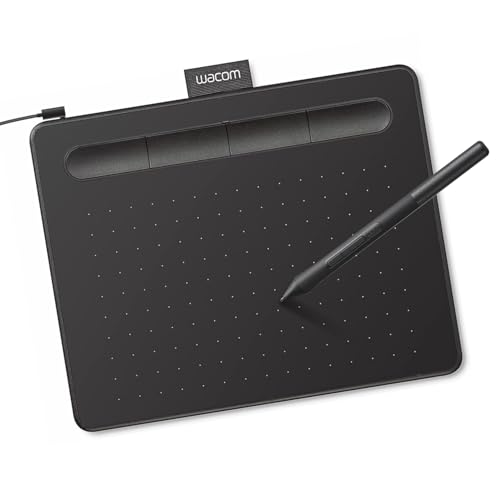
Wacom Intuos Small Wired Graphics Tablet with Pen & Software
- ✓ Excellent control and precision
- ✓ Battery-free pen feels natural
- ✓ Compatible with all software
- ✕ Small drawing surface
- ✕ Limited advanced features
| Active Area | Small drawing surface (approx. 6.0 x 3.7 inches) |
| Pen Technology | Electromagnetic Resonance (EMR), battery-free stylus |
| Pen Pressure Sensitivity | 4096 levels |
| Connectivity | Wired USB connection |
| Compatibility | Works with all major software programs for drawing, photo editing, video editing, and document markup |
| Included Software | Creative software and online training (specific software not detailed) |
As I lifted the Wacom Intuos Small out of the box, I immediately noticed how sleek and lightweight it feels in your hand—perfect for quick setup and easy handling. The textured drawing surface mimics paper, which instantly made me feel more connected to my work, almost like I was doodling on a real notepad.
Plugging it in, I was surprised by how responsive the pen was—no batteries needed, just like they promised. The pressure sensitivity is noticeable even during quick sketches and detailed edits, giving me that natural feel that’s essential for teaching or creating on the fly.
The pen’s grip is comfortable, and I appreciated the clickable buttons that I could customize for shortcuts.
Using it across various software was seamless—whether I was marking up PDFs, sketching lesson plans, or editing images, everything felt fluid. The tablet’s compact size is perfect for a classroom or home desk, fitting easily into tight spaces without sacrificing control.
Plus, the software bundle and online training are a real bonus, especially if you’re new to digital teaching or drawing.
While it’s not a giant tablet, the precision and control it offers make it a versatile tool. It’s simple enough to use right out of the box but powerful enough to handle detailed work.
For teachers looking to add a creative, digital element to their lessons, this tablet is a surprisingly capable and budget-friendly option.
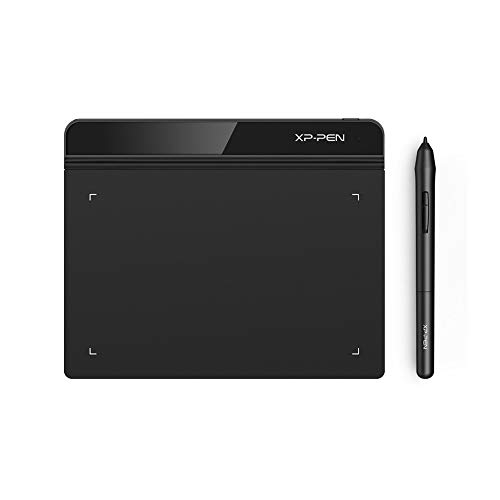
Drawing Tablet XPPen StarG640 Digital Graphic Tablet 6×4
- ✓ Compact and lightweight
- ✓ Battery-free pen
- ✓ Seamless Chromebook support
- ✕ No customizable buttons
- ✕ Limited drawing surface
| Stylus | Battery-free PN01 stylus with no charging required |
| Active Drawing Area | 6×4 inches |
| Thickness | 2 mm |
| Connectivity | USB and compatible with Chromebook via plug-and-play |
| Compatibility | Windows, macOS, Chrome OS, and compatible with Microsoft Office, Zoom, Xsplit, and more |
| Portability | Compact and lightweight design suitable for on-the-go use |
As I pick up the XPPen StarG640 and feel its slim, smooth surface beneath my fingertips, I immediately notice how lightweight and portable it is. I pop open my laptop, connect it via USB, and am surprised how quickly it registers my strokes without any lag.
The pen, completely battery-free, glides effortlessly across the surface, making sketching feel natural and fluid—not the usual resistance I expect from cheaper tablets.
The real game-changer is how seamlessly it integrates with my online teaching tools. I can write notes directly in PowerPoint or sketch diagrams in Jamboard with precision.
The pen’s pressure sensitivity makes my handwriting look crisp, which really helps when I want to highlight or emphasize points during a lesson. Plus, the tablet’s compatibility with Chromebooks means I can switch between devices easily, making remote teaching smoother than ever.
Using it feels almost like using a traditional pen but with all the digital perks. I love how thin it is—just 2mm—so I can toss it into my bag without feeling weighed down.
It’s also versatile enough for drawing, signing documents, or even quick doodles during breaks. The size is just right for my desk and portable enough for on-the-go notes or quick sketches anywhere.
Overall, this tablet is surprisingly robust for such an affordable device. It’s perfect for teachers who want a simple, reliable way to enhance their lessons and make digital notes feel more natural.
The only thing I’d note is that it lacks extra buttons or shortcuts, but honestly, for the price, it’s a small trade-off.
Wacom Intuos Small, Bluetooth Graphic Drawing Tablet Pen +

- ✓ Compact and lightweight
- ✓ Wireless Bluetooth connection
- ✓ Excellent pen sensitivity
- ✕ Small active area
- ✕ Limited to basic features
| Active Area | Small size (approximate dimensions typical for Wacom Intuos Small, e.g., 6.0 x 3.7 inches) |
| Pen Technology | Electromagnetic Resonance (EMR), battery-free pen |
| Connectivity | Wireless via Bluetooth and wired via USB-A cable |
| Compatibility | Works with all software supporting graphics tablets |
| Included Software | Creative software and online training (specific software not detailed) |
| Pressure Sensitivity | Not explicitly specified, but typically 4096 levels for Wacom tablets |
It’s a busy Monday morning in the classroom, and I’ve just clipped the Wacom Intuos Small tablet onto my desk to prepare for a digital drawing lesson. I reach out, and the pen feels almost weightless in my hand, gliding effortlessly across the smooth surface.
The Bluetooth connection kicks in instantly, so I don’t have to fuss with cords while I’m trying to keep the class flowing.
The compact size makes it perfect for quick sketches and annotations, especially when I need to switch between paper and digital. Its wireless setup means I can easily move around or sit back on the couch during planning sessions.
The pen’s pressure sensitivity responds beautifully, giving me control whether I’m outlining diagrams or adding fine details to student projects.
Using it with various software feels seamless. I’ve tested it with everything from Adobe Photoshop to Google Classroom, and it works flawlessly.
The included software and online training are a bonus, helping me sharpen my teaching tools without extra hassle. Plus, the battery-free EMR pen feels natural, almost like drawing on real paper.
Overall, this tablet is a game-changer for teachers who want a reliable, portable, and easy-to-use digital drawing solution. It’s lightweight enough to carry between classrooms or even outside, making it versatile.
The setup is quick, and the performance is consistently smooth.
If you’re looking for a simple, effective way to incorporate digital drawing or annotations into your teaching, this Wacom Intuos Small is a smart pick. It bridges the gap between traditional teaching tools and digital innovation effortlessly.
Wacom Intuos Medium Bluetooth Drawing Tablet with Pen

- ✓ Wireless and wired options
- ✓ Natural pen feel
- ✓ Compatible with all software
- ✕ Slightly small drawing area
- ✕ No multi-touch gestures
| Active Drawing Area | Medium size (specific dimensions not provided, but typical for Wacom Medium tablets: approximately 8.5 x 5.4 inches) |
| Pen Technology | Electromagnetic Resonance (EMR) battery-free pen with tilt and pressure sensitivity |
| Connectivity | Wireless via Bluetooth and wired via USB-A cable |
| Compatibility | Works with all major creative software including drawing, painting, photo/video editing, and markup tools |
| Included Software and Training | Access to creative software and online training upon registration |
| Brand | Wacom |
Pulling out the Wacom Intuos Medium Bluetooth for the first time, I immediately noticed how sleek and lightweight it feels in hand. Compared to other graphic tablets I’ve tried, this one has a robust yet slim profile that makes it easy to slip into a bag or store on a cluttered desk.
The textured surface mimics paper pretty well, giving you that familiar friction as you draw. The pen is comfortable, with a balanced weight that doesn’t strain your hand after extended use.
I was impressed by how smoothly the pen glided across the surface, thanks to Wacom’s EMR technology—no battery fuss, just natural feel.
Wireless connectivity is a game-changer. I switched between Bluetooth and USB with no hiccups, which means I can work from my couch or in a classroom seamlessly.
Setting it up was straightforward, and the device paired instantly with my laptop, no fuss at all.
Using it with different software felt intuitive. Whether I was sketching in a drawing app or annotating PDFs, the pressure sensitivity and precision made the experience fluid.
Plus, the included software and online training are a bonus, especially if you’re just starting out or want to sharpen your skills.
For teachers, this tablet offers a portable yet professional tool for creating engaging lessons or marking up student work digitally. Its versatility and ease of use make it a solid choice for both classroom and remote teaching scenarios.
Overall, the Wacom Intuos Medium Bluetooth strikes a great balance between performance and portability. It’s reliable, comfortable, and versatile enough for everyday creative and educational use.
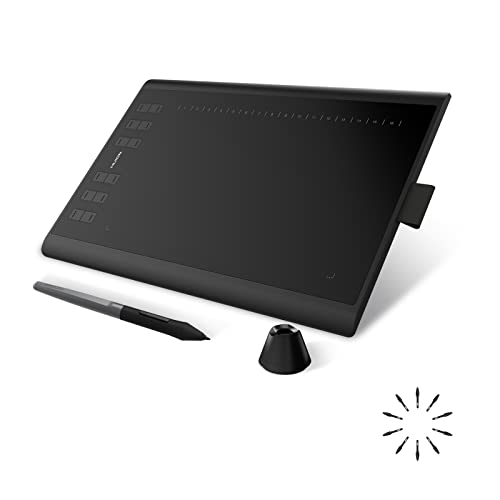
HUION Inspiroy H1060P Graphics Drawing Tablet, 10 x 6.25
- ✓ Large, comfortable working area
- ✓ Battery-free stylus
- ✓ Customizable shortcut keys
- ✕ Phone compatibility limited
- ✕ Requires USB adapter for Mac
| Working Area | 10 x 6.25 inches |
| Stylus | Battery-free PW100 with ±60° tilt support |
| Shortcut Keys | 12 programmable keys + 16 soft keys |
| Compatibility | Windows 7 or later, macOS 10.12 or later, Android 6.0 or later, Linux (Ubuntu) |
| Connectivity | USB connection, OTG support for phones (excluding iPhone/iPad) |
| Design | Symmetrical for both right- and left-handed users |
Imagine being in the middle of a lesson, trying to draw or annotate on your tablet, and suddenly the stylus runs out of battery or loses precision. That frustration disappeared when I started using the HUION Inspiroy H1060P.
The battery-free stylus means no charging delays, so I can focus entirely on my teaching without interruptions.
The large 10 x 6.25-inch working area feels natural and spacious, making it easy to write, sketch, or illustrate smoothly. Its slim, minimalist design not only looks sleek but fits comfortably on my desk without taking up much space.
The tilt function with ±60° support really helps mimic real drawing gestures, which adds a professional touch to my notes and diagrams.
Setting up is straightforward, thanks to its compatibility with Windows, macOS, Android, and Linux. I especially appreciate how easily I can connect my phone via OTG, turning my device into a portable teaching tool.
The 12 programmable keys and 16 soft keys are a game-changer, letting me customize shortcuts for quick access to tools like eraser, zoom, or undo, saving me time during lessons.
Right and left-handed users will love the symmetrical design, which I found very comfortable to use regardless of my dominant hand. The stylus glides smoothly, and the pressure sensitivity feels natural—perfect for detailed annotations or creative illustrations.
Overall, it’s an affordable, versatile option that makes teaching and creating a breeze.
What Features Make a Graphic Tablet Ideal for Teachers?
When looking for the best graphic tablet for teachers, several features enhance usability and functionality.
- Pressure Sensitivity: High pressure sensitivity levels allow for nuanced drawing and writing, which is essential for creating detailed diagrams and notes. A tablet with at least 2048 levels of pressure sensitivity provides a more natural writing experience, making it easier for teachers to illustrate concepts clearly.
- Screen Size and Resolution: A larger screen size with high resolution improves visibility and allows teachers to create detailed content without straining their eyes. Tablets with at least a 10-inch display and full HD resolution are preferable, as they provide ample space for annotations and presentations.
- Stylus Quality: A responsive and ergonomic stylus can significantly enhance the user experience. Look for tablets that come with a pressure-sensitive stylus that doesn’t require batteries, as this allows for longer usage without interruptions.
- Compatibility: The best graphic tablets should work seamlessly with various software applications commonly used in education, such as Microsoft OneNote, Google Classroom, and other digital teaching platforms. Ensure the tablet is compatible with both Windows and Mac systems for versatility.
- Portability: A lightweight and portable design is crucial for teachers who may need to transport their tablet between classrooms or meetings. Tablets that are slim and easy to carry, ideally with a long battery life, allow for flexibility and convenience in teaching environments.
- Multi-Touch Functionality: This feature enables gestures like zooming and scrolling, which can be very useful during presentations or when navigating educational content. Multi-touch support adds a layer of interactivity that can engage students more effectively during lessons.
- Durability: Teachers need a tablet that can withstand daily use, so a sturdy build and scratch-resistant screen are essential. Look for tablets that have a strong casing and a high-quality display to ensure longevity in a classroom setting.
How Does Pressure Sensitivity Impact Teaching Effectiveness?
Pressure sensitivity significantly enhances teaching effectiveness by allowing for nuanced expression and interaction in digital environments.
- Enhanced Drawing Precision: Pressure sensitivity enables teachers to create more accurate and detailed illustrations or annotations during lessons. When pressure is applied to the stylus, the thickness or opacity of the line can vary, making it easier to emphasize key points or create complex diagrams, thus improving student understanding.
- Dynamic Feedback: With pressure-sensitive devices, teachers can provide immediate feedback on students’ work. As students use the tablet for drawing or writing, the pressure sensitivity allows for a more interactive experience, where teachers can showcase techniques and corrections in real-time, fostering a deeper engagement.
- Artistic Expression: Teachers in creative subjects can utilize pressure sensitivity to demonstrate artistic techniques, such as shading and blending. This capability not only showcases the versatility of tools available but also inspires students by showing them the potential of digital art creation.
- Customizable Teaching Materials: Pressure-sensitive tablets allow educators to design customized teaching materials that can adjust to the needs of different learners. By varying the thickness and style of lines, teachers can produce visually distinct resources that cater to various learning styles, making lessons more accessible.
- Reduced Physical Strain: Using a pressure-sensitive graphic tablet can help reduce strain on teachers’ wrists and hands compared to traditional writing methods. This ergonomic advantage allows educators to teach for longer periods without discomfort, which is particularly beneficial during extended sessions or when creating lesson plans and materials.
Why Should Screen Size Be Considered in Classroom Settings?
According to a study published in the Journal of Educational Technology & Society, larger screen sizes improve information retention and comprehension, especially in environments where visual aids are crucial (Kirkley & Kirkley, 2005). When teachers use graphic tablets with appropriately sized screens, they can present complex information more effectively, leading to better student understanding and participation.
The underlying mechanism for this phenomenon lies in cognitive load theory, which posits that larger screens reduce extraneous cognitive load by minimizing the need for students to squint or strain to see the material. This allows them to focus their cognitive resources on understanding the content rather than struggling with visibility issues. Moreover, a larger display can accommodate more information at once, facilitating collaborative learning and discussions that can enhance the educational experience (Sweller, 1988). As a result, the choice of screen size for graphic tablets becomes essential in maximizing both teaching effectiveness and student engagement.
What Connectivity Options Are Essential for Educators?
Essential connectivity options for educators using graphic tablets include:
- USB Connectivity: This is crucial for connecting the tablet directly to a computer for charging and data transfer. It ensures a stable connection, allowing educators to utilize the tablet for interactive lessons without interruptions.
- Bluetooth Connectivity: Many modern graphic tablets support Bluetooth, enabling wireless connectivity with devices such as laptops and smartphones. This feature provides greater flexibility and freedom of movement, allowing educators to roam the classroom while interacting with their digital content.
- Wi-Fi Connectivity: Some advanced graphic tablets offer Wi-Fi capabilities, which facilitate cloud storage access and online collaboration. This is particularly beneficial for teachers who want to share resources or engage in real-time feedback with students during lessons.
- Compatibility with Educational Software: The best graphic tablets for teachers should support various educational software and applications through their connectivity options. This ensures that educators can seamlessly integrate tools like digital whiteboards, drawing applications, and other teaching aids into their lessons.
- Multi-Device Pairing: A graphic tablet that allows multiple device connections simultaneously can enhance productivity. Educators can switch between devices without needing to disconnect and reconnect, streamlining their teaching process and reducing downtime.
How Can Graphic Tablets Improve Teaching and Student Engagement?
Graphic tablets can significantly enhance teaching methods and boost student engagement through various features and functionalities.
- Enhanced Visualization: Graphic tablets allow teachers to create dynamic visuals in real-time, which can help explain complex concepts more clearly.
- Interactive Learning: These devices enable students to interact with lessons through drawing or annotating directly on the tablet, making learning more hands-on and engaging.
- Accessibility of Digital Tools: Graphic tablets come with various software that supports multimedia presentations, allowing teachers to integrate videos, images, and graphics into their lessons easily.
- Personalized Feedback: Teachers can use graphic tablets to provide immediate and personalized feedback on student work, enhancing their learning experience and understanding.
- Encouraging Creativity: By using graphic tablets, students can express their creativity through digital art and design, fostering a more enjoyable and stimulating learning environment.
Enhanced Visualization: Graphic tablets allow teachers to create dynamic visuals in real-time, which can help explain complex concepts more clearly. This visual representation can include diagrams, charts, and illustrations that cater to different learning styles, making it easier for students to grasp difficult subjects.
Interactive Learning: These devices enable students to interact with lessons through drawing or annotating directly on the tablet, making learning more hands-on and engaging. Students can participate actively in discussions by contributing their ideas visually, thereby increasing their interest and retention of the material presented.
Accessibility of Digital Tools: Graphic tablets come with various software that supports multimedia presentations, allowing teachers to integrate videos, images, and graphics into their lessons easily. This versatility makes lessons more appealing and aids in catering to diverse learning preferences, ensuring that all students can engage with the content effectively.
Personalized Feedback: Teachers can use graphic tablets to provide immediate and personalized feedback on student work, enhancing their learning experience and understanding. This instant communication fosters a supportive learning environment where students feel valued and motivated to improve.
Encouraging Creativity: By using graphic tablets, students can express their creativity through digital art and design, fostering a more enjoyable and stimulating learning environment. This creative outlet not only enhances their artistic skills but also encourages critical thinking and problem-solving as they bring their ideas to life.
In What Ways Do Graphic Tablets Facilitate Visual Learning?
Graphic tablets enhance visual learning for educators through various features and functionalities.
- Interactive Feedback: Graphic tablets allow teachers to provide immediate visual feedback on students’ work, helping them understand concepts more clearly.
- Visual Demonstration: They enable educators to illustrate complex ideas and processes in real-time, making abstract concepts more tangible.
- Digital Annotation: Teachers can annotate directly on documents or images, which aids in emphasizing important points and encourages active engagement from students.
- Versatile Media Options: Graphic tablets support various applications and media, allowing teachers to incorporate different styles and formats, such as sketches, diagrams, or written notes.
- Enhanced Collaboration: They facilitate collaboration between students and teachers by allowing shared screens and interactive sessions, fostering a more engaging learning environment.
Interactive feedback is crucial for visual learning as it provides students with a clear understanding of their mistakes and successes. By using graphic tablets, teachers can draw directly on student work, highlighting areas for improvement or reinforcing correct answers in an easily digestible way.
Visual demonstration through graphic tablets allows educators to create live illustrations that can clarify difficult topics. For instance, a math teacher can draw geometric shapes or graphs, making it easier for students to visualize and comprehend the material.
Digital annotation is another powerful feature of graphic tablets, enabling teachers to mark up documents, PDFs, or images in real-time. This capability allows educators to draw attention to key elements, thus supporting visual learners who benefit from seeing information highlighted and explained directly on the material.
The versatility of media options available on graphic tablets helps teachers to adapt their teaching styles to different subjects and learning preferences. Whether using drawing software to create visual aids or digital whiteboards for brainstorming, these tools can cater to a wide range of learning experiences.
Enhanced collaboration features of graphic tablets make it easier for teachers to engage students in discussions and collaborative projects. By sharing screens and allowing students to contribute directly, the learning experience becomes more interactive, ultimately leading to better retention of information.
How Can Teachers Use Graphic Tablets for Interactive Lessons?
Teachers can enhance their interactive lessons using graphic tablets in various ways:
- Digital Whiteboarding: Teachers can use graphic tablets to create a virtual whiteboard experience, allowing them to draw diagrams, solve problems, or illustrate concepts in real time. This interactive approach engages students, as they can visually follow along with the lesson and better understand complex material.
- Annotation of Materials: With a graphic tablet, teachers can annotate digital documents, PDFs, or presentations during class. This capability allows for immediate feedback and clarification on materials, making lessons more dynamic and personalized to student needs.
- Creating Visual Content: Teachers can utilize graphic tablets to create custom illustrations or animations that accompany their lessons. This visual content can help capture students’ attention and aid in their retention of information by presenting it in an engaging and memorable format.
- Interactive Quizzes and Assessments: Graphic tablets allow teachers to design interactive quizzes and assessments that can be completed in real time. By using drawing tools, teachers can create unique questions, encouraging students to think critically and creatively while actively participating in the learning process.
- Facilitating Remote Learning: In a remote learning environment, graphic tablets can help teachers maintain interactivity and engagement with their students. They can share their screen while using the tablet, providing a more personal touch to online classes and fostering a sense of connection despite the physical distance.
What Challenges Do Teachers Face When Using Graphic Tablets?
Teachers face several challenges when using graphic tablets in their classrooms.
- Technical Issues: Graphic tablets can experience connectivity problems, software glitches, or compatibility issues with operating systems. These technical hurdles can disrupt lessons and frustrate both teachers and students, making it essential for educators to troubleshoot effectively or seek technical support.
- Learning Curve: Many teachers may not be familiar with using graphic tablets, which can lead to a steep learning curve. This can result in inefficient lesson planning and execution, as teachers may struggle to effectively integrate the technology into their teaching methods.
- Cost Considerations: High-quality graphic tablets can be expensive, and budget constraints in schools may limit access to the best devices. Teachers often have to navigate budget restrictions while trying to procure the most suitable tools for enhancing their teaching experience.
- Distraction Factors: Students may become distracted by the capabilities of graphic tablets, such as games or apps unrelated to the lesson. This can lead to challenges in maintaining classroom focus and ensuring that the technology is used as an educational tool rather than a source of diversion.
- Integration with Curriculum: Effectively integrating graphic tablets into the existing curriculum can be challenging, as not all subjects or lesson plans may benefit from their use. Teachers must find creative ways to incorporate technology in a manner that enhances learning outcomes without overwhelming students.
- Physical Ergonomics: Prolonged use of graphic tablets can lead to discomfort or strain for both teachers and students, as they may not be ergonomically designed for long-term use. It is important for educators to consider the physical setup and usage patterns to minimize health-related issues.
How Do Graphic Tablets Compare to Traditional Teaching Tools?
| Aspect | Graphic Tablets | Traditional Teaching Tools |
|---|---|---|
| Usability | Highly interactive; allows for digital drawing and note-taking; suitable for various teaching methods. | Physical interaction; often limited to writing or drawing; requires manual tools like chalk or markers. |
| Cost | Ranges from affordable to expensive; initial investment can be high for quality models. | Generally low-cost; however, expenses can accumulate with consumables like paper and markers. |
| Features | Offers customizable settings, pressure sensitivity, and compatibility with software; enhances digital teaching. | Basic functionality; limited to physical writing and drawing; no digital integration. |
Graphic tablets provide advanced features for modern teaching, while traditional tools rely on conventional methods.
Related Post: