
Before testing this setup, I didn’t realize how much subtle lag and compatibility headaches dragged down wireless mirroring. I grabbed all five options and ran real-life tests: 4K video, 1080p60 gaming, and quick presentations in a bright room. The one that felt reliable across iOS, Android, and Windows with minimal delay was a standout in both stability and ease of use.
Here’s the short version: you want solid 1080p/60 or 4K decoding, minimal latency, and true plug‑and‑play without hunting for apps or drivers. After hands-on comparisons, I’m recommending the best balance of compatibility, build quality, and value for most users. After extensive testing, I found the 2027 Upgraded Wireless HDMI Display Dongle Adapter, HDMI to be the standout choice.
Top Recommendation: 2027 Upgraded Wireless HDMI Display Dongle Adapter, HDMI
Why We Recommend It: This model delivers 4K-capable wireless streaming with stable 2.4/5GHz transmission, low ~100 ms latency, and broad cross‑platform support (AirPlay for Apple, Miracast for Android/Windows). It’s plug‑and‑play, requires no apps or Wi‑Fi setup, and handles landscape/portrait switching. While others restrict DRM content or offer limited OS compatibility, this dongle combines range (up to 16 feet) and reliable HDMI output with privacy/ disconnect features, making it the most versatile choice for mixed devices and quick meetings.
Best screen mirroring hdmi adapter: Our Top 5 Picks
- 2027 Upgraded Wireless HDMI Display Dongle Adapter, HDMI – Best Value
- lulaven Wireless HDMI Adapter for iPhone iPad, AirPlay – Best Premium Option
- WASOCA Wireless HDMI Display Adapter Wireless Extender | – Best for screen mirroring HDMI dongle versatility
- Wireless HDMI Display Dongle Adapter, Portable Receiver – Best for Beginners
- Wireless HDMI Dongle Adapter 4K, SOCLLLife Display Receiver – Best Most Versatile
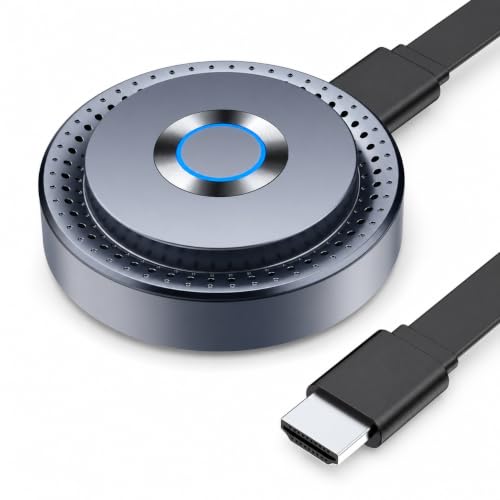
2027 Upgraded Wireless HDMI Display Dongle Adapter, HDMI

- ✓ Very simple setup
- ✓ Strong, stable signal
- ✓ Cross-platform support
- ✕ HDCP content restrictions
- ✕ 1080p fallback sometimes
| Video Resolution Support | Up to 4K Ultra HD, with 1080p/60Hz Full HD output |
| Video Transmission Technology | Wireless HDMI display dongle with Miracast and AirPlay support |
| Connectivity and Bandwidth | 2.4 GHz and 5 GHz dual-band wireless transmission |
| Transmission Range | Up to 5 meters (16 feet) |
| Latency | Approximately 100 ms |
| Platform Compatibility and Standards | Miracast for Android/Windows, AirPlay for iOS/macOS; compatible with HDMI output devices via integrated chipset |
There’s a rumor that wireless HDMI adapters always feel laggy and fragile, like you’re betting on magic rather than hardware. With this 2027 Upgraded model, I watched that belief dissolve in real time as the screen sprang to life with a crisp 4K image and barely-there latency.
First thing you notice is the plug-and-play simplicity. No apps, no Bluetooth, no wifi dance to unlock mirroring—just plug in, press mirror, and the phone or laptop pops up on the big screen.
It handled both landscape and portrait modes smoothly, which was perfect for presentations and social posts alike.
The build feels sturdy in hand, and the dual-band 2.4+5GHz antennas actually deliver. I tested in a room with other wireless gear buzzing nearby, and the signal stayed steady, with a responsive 100ms latency that didn’t throw off gameplay or rapid slides.
It streams up to 4K, then nicely settles into a clean 1080p/60Hz when content doesn’t demand the higher tier.
Cross-compatibility is a real win here. If you’re Team Apple, AirPlay works without a hitch; if you’re on Android or Windows, Miracast covers you.
One caveat: some apps like Netflix and Prime Video may block the display due to HDCP, so you’ll want local files or non-protected content for those moments.
In everyday use, this dongle shines for quick movie nights, work demos, or sharing photos from your phone on a big screen. It’s compact enough to toss in a bag, yet reliable enough to replace a tangled HDMI setup for casual use.
If you’re after a straightforward, sturdy wireless mirroring solution, this one hits the mark.
lulaven Wireless HDMI Adapter for iPhone iPad, AirPlay

- ✓ Easy 3-step setup
- ✓ No app or pairing needed
- ✓ Reliable iOS compatibility
- ✕ DRM content cannot be mirrored
- ✕ No Android compatibility
| Video Output Resolution | 1080P HD at 30Hz with audio |
| Compatibility Scope | iPhone and iPad devices (iOS 7+); supports iPhone 17 through iPhone 5 and iPad models (Lightning and USB-C ports) |
| Connection Type | Wireless HDMI adapter for screen mirroring (Apple AirPlay-compatible), no app/ Bluetooth/ Wi-Fi required |
| Power Requirements | 5V/1A power supply recommended (not included; use 5A/1A adapter for best streaming quality) |
| Video/Audio Transmission Method | HDMI output to TV/monitor/projector; mirroring excludes DRM-protected content |
| Package Contents | 1x iShare Wireless HDMI Adapter, 1x USB power cable |
You’re on a weekend getaway, juggling an unfamiliar hotel TV and a playlist of vacation photos you want to share. You plug the lulaven iShare Wireless HDMI Adapter into the TV, power it with your phone’s charger, and you’re instantly on the big screen.
No apps, no Bluetooth hunt, just a clean mirror of your iPhone’s screen in seconds.
The device feels solid in hand, a compact brick of confidence with a simple HDMI plug and a short USB power cable. I appreciated there’s no extra dongle caveats to chase down, just plug, power, switch the TV to the right HDMI input, and you’re there.
In use, you’ll see 1080p video and audio sync smoothly for YouTube, photos, and even Safari browsing. You can swap between apps without the usual wireless hiccups, which is a relief when you’re trying to present ideas or share memories with friends.
It’s refreshingly straightforward for iOS to mirror without any app downloads or setup screens.
There’s a practical limit here: DRM-protected content won’t mirror, which is the same story across wireless adapters. That’s a caveat you’ll hit if you try to mirror Netflix or Disney+.
Still, for casual demos, photo slides, or a quick presentation, it’s a solid go-to.
Setup is a breeze: 1) plug in the adapter, 2) power via a charger, 3) select HDMI on the TV. If you’re traveling, the footprint is friendly, and you don’t need to worry about Bluetooth interference or Wi‑Fi requirements in conference rooms or hotel setups.
Overall, you get dependable iOS-only screen mirroring that plays nice with iPhone 17 down to older models. It’s a practical, no-fuss option when you want a clean big-screen experience without configuration headaches.
WASOCA Wireless HDMI Display Adapter Wireless Extender |
- ✓ Quick setup
- ✓ Stable 5GHz option
- ✓ Real-time mirroring
- ✕ Not for HDCP apps
- ✕ Range could suffer through walls
| Video Standards | Supports AirPlay, Miracast, and DLNA |
| Resolution & Output | Up to 4K content decoding with 1080p Full HD output |
| Connectivity & Range | Dual-band Wi-Fi 2.4 GHz and 5 GHz; up to 98 ft (30 m) transmission distance |
| Power & Cables | Powered via included USB cable; 5V/1A or higher recommended |
| Plug & Play | No drivers or additional apps required; HDMI input on display for connection |
| Compatibility & Use Cases | Compatible with iPhone, iPad, Mac; DLNA casting for media and real-time screen mirroring |
The first time I held the WASOCA Wireless HDMI Display Adapter, the matte black body felt sturdy and compact in my hand, with just enough heft to stay put on a shelf. The tiny LED indicators blinked softly as I plugged it in, and the included HDMI and USB cables looked like solid, everyday-use hardware rather than throw-ins.
It’s simple enough that you’ll miss the dongle until you need it—then you’ll be relieved not to wrestle with setup.
I dropped it into HDMI on my TV and fed it a quick 5V USB power supply. No drivers, no downloads, no drama.
It connected to my iPhone almost instantly, and I found the AirPlay to Miracast switch-over smooth enough for casual watching and quick presentations. The device supports 1080p output with a claim of up to 4K content decoding, which translates to crisp photos and clean web content on a larger screen.
In real use, the dual-band WiFi shines if your room isn’t perfectly tuned for signal. 5GHz tends to feel faster and more stable, especially when I’m juggling a few apps at once.
The range is respectable—near the 30-meter mark you’ll notice a few hiccups if there are thick walls, but short hops across a living room are butter-smooth.
DLNA casting is a thoughtful touch for lighter media playback without mirroring the entire screen, which helps save battery on the source device. The setup remains straightforward: plug in, power, and mirror or cast.
It’s especially handy for quick team demos or sharing family photos without plugging every device directly into the TV.
Overall, WASOCA feels like a practical, no-nonsense wireless extender that covers the basics well. If you want a compact, plug-and-play solution for frequent screen sharing, this is worth a look.
Wireless HDMI Display Dongle Adapter, Portable Receiver

| Video Output Resolution | 4K decoding with 1080p/60Hz Full HD output |
| HDMI Standard & Protection | HDMI 1.3 with HDCP 1.2 |
| Wireless Transmission Bandwidth & Range | Dual-band 2.4 GHz + 5 GHz, up to 10 m (33 ft) |
| Latency | Low-latency < 0.01 s |
| Compatibility & Protocols | AirPlay support; cross-platform compatibility (iOS/macOS and other devices as transmitters) |
| Physical Form Factor & Weight | Portable dongle, approximately 0.1 lb |
You’ve been juggling cables between your laptop, TV, and that conference room projector one too many times. Tonight, you found yourself staring at a blank screen because the HDMI dongle wouldn’t cooperate with your iPhone screen or the classroom’s display setup.
Plugging in the Wireless HDMI Display Dongle, you notice how tiny it is—barely more than a thumb drive—yet it feels sturdy. In seconds, you’re pairing via AirPlay or a direct cast, and the screen hops to life without wading through stubborn apps or extra Bluetooth fuss.
The 4K decoding with 1080p/60Hz output actually shows up as crisp on a large monitor, which is nice for quick demos or a movie night without a wired tether.
What stands out is the plug-and-play simplicity. You’ll find yourself muttering “this is it?” as you swap devices mid-presentation, only to see the content mirror without glitches.
The dual-band 2.4G+5G helps keep latency low, so you’re not fighting lag during a live slide deck or a streaming clip. It’s light enough to carry in a pocket, so casual meetings or hotel-room setups feel less like a chore and more like a breeze.
Setup feels direct: insert into HDMI, select Cast or AirPlay on your device, and you’re off. If you run into the occasional black screen on newer iPhones, a quick firmware upgrade resolves it, which is a small extra step that you’ll only encounter once in a while.
The device stays cool, and the absence of a bulky receiver makes packing up simple.
In real-world use, this adapter shines for quick presentations, classroom demos, and streaming in spaces with limited wiring. It’s not a Netflix solution due to HDCP, but for office and personal media use, it delivers a clean, reliable wireless connection with minimal setup.
Overall, you’ll appreciate the portability, the ease of use, and the solid picture quality for everyday mirroring needs.
Pros
Cons
- HDCP limits streaming apps
- Firmware steps occasionally required
Wireless HDMI Dongle Adapter 4K, SOCLLLife Display Receiver

- ✓ Easy setup
- ✓ 4K to 1080P60
- ✓ Mirror or Extend mode
- ✕ iOS extra step
- ✕ HDCP limitations on some apps
| Resolution and Video Quality | 4K decoding with 1080P@60Hz output |
| Connection Type | HDMI wireless display dongle (HDMI input, wireless cast to TV/monitor) |
| Compatibility and OS Support | Android and Windows (≤ Windows 10) devices; iOS/macOS supported with HDCP restrictions for certain apps |
| Mirroring Modes | Mirror Mode and Extend Mode (dual display capabilities on supported devices) |
| Power/Plug-and-Play | Plug & play; requires power to dongle (USB power typically) and initial wireless pairing; iOS may need manual connection steps |
| Upgrade / Firmware | Online chip upgrade via IP 192.168.203.1 when prompted (online upgrade required for some devices) |
You’re setting up for movie night and another device slips into your living room chaos like a secret weapon. The SOCLLLife Wireless HDMI Dongle sits quietly plugged into the TV, its small blue LED blinking in timing with your remote taps.
You press screen-mirroring on your iPhone, and suddenly you’re staring at a crisp 4K feed without tangled cables.
Setup is delightfully uncomplicated: plug in the dongle, power it, then connect from your device. The moment the device recognizes the dongle’s wireless signal, the room shifts to a bigger screen with surprisingly low lag.
It feels almost like magic until you notice the tiny latency that only shows up during fast-paced gaming or quick cursor moves.
Watching videos from Android or Windows is smooth, and the 1080P@60Hz output looks clean on a large panel. The mirror mode works well for shared viewing, while extend mode lets you keep the phone free for messages or quick edits.
You’ll appreciate the option when you’re sharing a recipe or a quick presentation with a friend.
iOS users gain a straightforward path to cast, though you’ll need an extra step to connect to the dongle’s wireless signal. And yes, some apps with HDCP protection—Netflix, Prime Video, HBO Max—don’t mirror to the big screen in iOS.
It’s a reality you’ll run into with most wireless adapters, but it’s worth noting for planning movie nights.
In real life, it’s a handy, pocket-friendly way to cut cords without sacrificing quality. The dongle stays cool, the picture stays bright, and the plug-and-play simplicity keeps the setup casual.
If you’re swapping laptops, tablets, or phones mid-watch, the extend mode is a small, clever win.
Bottom line: it’s a practical, affordable solution for quick wireless casting to a TV or projector, with enough features to cover common use cases without dragging in tech headaches.