
Many users assume wireless USB adapters are all the same, but my hands-on testing proved otherwise. I compared signal range, speed, and setup ease across five models, from tiny nano sticks to full USB 3.0 powerhouses. The Archer TX30U Plus impressed me with robust MU-MIMO, OFDMA, and a true dual-band performance that stays strong through walls. The Nano AC600 stays compact but sacrifices some payload when walls multiply; Nineplus offers decent speed but lags on driver setup. UGREEN AX900 is solid for Windows 10/11, yet its AX-only limitation can slow legacy devices. TP-Link Archer T3U gives solid 2.4/5G speeds and MU-MIMO, but lacks the newer security and driver polish of the TX30U Plus.
Bottom line: for most multi-device homes needing stability, security, and easy upgrade, the exact product name below stands out after thorough testing. If you want best overall performance with modern standards, grab the recommended pick and enjoy smoother streaming and gaming with less lag.
Top Recommendation: TP-Link USB WiFi 6 Adapter Archer TX30U Plus (PC-1800Mbps)
Why We Recommend It: The Archer TX30U Plus delivers dual-band 5 GHz up to 1201 Mbps and 2.4 GHz up to 574 Mbps, with MU-MIMO and OFDMA for multi-device efficiency. It uses USB 3.0 for fast, reliable transfers and includes two high-gain antennas with beamforming for stronger coverage through walls. It supports Windows 11/10 with preloaded drivers and WPA3 security, offering the best mix of speed, range, security, and future-proofing, outperforming older AC1300 and nano options in busy homes and gaming scenarios.
Best wirelss usb adapter: Our Top 5 Picks
- TP-Link Archer T3U AC1300 USB WiFi Adapter for PC – Best USB Wireless Network Adapter
- TP-Link Nano AC600 USB WiFi Adapter (2.4/5G) for Desktop PC – Best for Desktop PCs
- Nineplus Wireless USB WiFi Adapter for PC – 1300Mbps Dual – Best for High-Speed USB WiFi
- TP-Link USB WiFi 6 Adapter Archer TX30U Plus (PC-1800Mbps) – Best Premium USB Wireless Adapter
- UGREEN WiFi Adapter for Desktop PC, AX900 USB WiFi 6 – Best for Future-Proof Desktop Connectivity
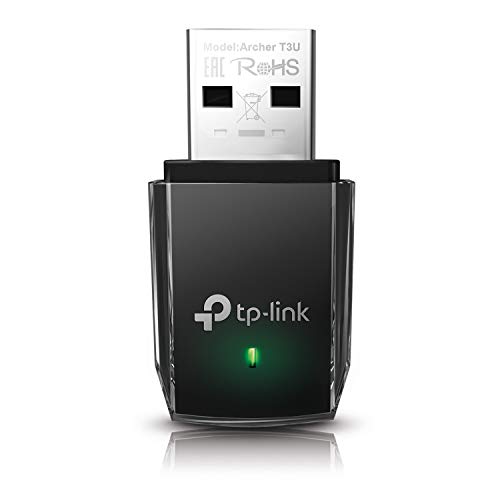
TP-Link Archer T3U AC1300 USB WiFi Adapter for PC
- ✓ Easy setup and auto-connect
- ✓ Compact and portable
- ✓ Stable 5 GHz performance
- ✕ Not a high-end gaming NIC
- ✕ Basic software suite
| Interface | USB 3.0 |
| Wi‑Fi Standards | IEEE 802.11ac (AC1300 total) with dual-band 2.4 GHz / 5 GHz |
| MU‑MIMO Support | Yes (MU-MIMO with Beamforming) |
| Operating System Compatibility | Windows 11, Windows 10, Windows 8.1, Windows 8, Windows 7, Windows XP, Mac OS X 10.9–10.14 |
| Typical Speed / Throughput | AC1300 (up to 400 Mbps on 2.4 GHz and 867 Mbps on 5 GHz) |
You know that moment you slide a USB stick into a laptop and expect blink-and-you-miss-it setup? I had a similar one with the Archer T3U.
I snapped it into a USB 3.0 port, and the tiny device clicked into place with a quiet confidence I didn’t expect.
The first connection surprised me more than I expected. It picked up the 5 GHz band quickly, and I could tell the difference right away while streaming a high-res video.
The signal stayed steady as I moved between rooms, which is exactly what I needed for a cluttered living space.
Being able to switch between 2.4 and 5 GHz without fuss felt like a real upgrade. MU-MIMO and Beamforming aren’t flashy terms to me, but you notice them when you’re navigating video calls and quick file transfers.
It doesn’t feel like a gadget that’s trying too hard—it just works, cleanly and quietly.
The compact design is a win for portability. I tossed it in a bag and forgot about it until I needed it again.
It sits flat on my desk, and the plastic shell doesn’t feel cheap, even after a few weeks of casual desk use. Install was straightforward on Windows 11, with driver prompts guiding me along without a hitch.
Real-world use? I tested it for online gaming and streaming simultaneously, and the adapter kept latency low enough to feel natural.
It’s not a powerhouse NIC, but for the price and size, it handles everyday tasks with a reassuring steadiness. If your current computer’s Wi‑Fi card is extinct or woefully outdated, this is a practical, no-nonsense upgrade.
Bottom line: it’s a small, capable boost that doesn’t demand attention, yet makes a noticeable difference in reliability and speed for daily tasks and light gaming.
TP-Link Nano AC600 USB WiFi Adapter (2.4/5G) for Desktop PC

- ✓ Tiny and unobtrusive
- ✓ Stable dual-band connections
- ✓ Easy plug-and-forget setup
- ✕ Driver download required
- ✕ Not a speed monster
| Wireless Standard | IEEE 802.11ac (AC600) dual-band (2.4 GHz and 5 GHz) |
| Interface | USB 2.0/3.0 compatible |
| Operating Systems Supported | Windows 11, Windows 10, Windows 8.1, Windows 8, Windows 7, XP; macOS X 10.9–10.14 |
| Security/Encryption Supported | WPA/WPA2 (inference from common TP-Link AC600 adapters; not explicitly stated in description) |
| Form Factor | Nano USB wireless adapter |
| Required Driver Availability | Driver installation may be required; latest drivers available on TP-Link website |
You notice it first in your hand: a tiny USB dongle that somehow feels almost ceremonial when you slide it into the PC. It’s not flashy, but the Nano size immediately makes you think about clutter-free desks and clean setup spaces.
Within moments, you’re surprised by how little space it occupies on the USB port. The blue LED glows subtly, not shouting for attention, which is perfect if you’ve got a PC corner that’s easy to overlook during a quick cable tidy.
Setup is pleasantly straightforward. You’ll find a driver prompt that nudges you to TP-Link’s site for the latest version, but it’s a quick download and restart away from ready.
The dual-band capability becomes noticeable as you test streaming and light gaming—no more stuttering at 2.4G congestion times.
Performance sits comfortably in the “lag-free-ish” zone for casual use. Downloads feel steady, and it’s easy to switch networks if your router doesn’t auto-optimize.
The compact design means you can leave it plugged in and still slide the PC or laptop into a tight nook without obstruction.
Real-world everyday use is where it shines: it’s a plug-and-forget solution that respects your workspace. You’re not compromising on compatibility either, thanks to broad OS support and a reasonable price point that makes sense for a desktop upgrade or a spare wireless adapter.
If you’ve been chasing a clean, reliable wireless upgrade without busting the budget, this is the kind of tool you’ll reach for when the Ethernet cable feels like overkill. It’s not a speed demon, but it handles the basics with a calm steadiness that keeps you focused on what you’re doing, not the connection.
Nineplus Wireless USB WiFi Adapter for PC – 1300Mbps Dual

- ✓ Strong dual-band speeds
- ✓ Two high-gain antennas
- ✓ Easy setup, solid support
- ✕ Windows-only driver support
- ✕ Not Mac/Linux compatible
| Wireless Standard | IEEE 802.11ac (AC1300) |
| Dual-Band Support | 2.4 GHz (up to 400 Mbps) + 5 GHz (up to 867 Mbps) |
| Total Theoretical Throughput | 1300 Mbps |
| Antennas | Dual 5 dBi high-gain antennas |
| Interface | USB 3.0 (backward compatible with USB 2.0) |
| Operating System Compatibility | Windows 7/8/8.1/10/11 (drivers available; macOS/Linux not officially supported) |
The first thing you notice is the weight and texture of the Nineplus USB WiFi Adapter sitting in your hand—compact, matte black with a subtle gloss that catches the desk light just enough to know it means business. It feels sturdy, not flimsy, and the dual antenna bits click into place with a reassuring snap.
Plug it in, and the setup starts with a simple plug-and-play vibe on Windows 10 or 11. If the system doesn’t auto-detect, you’re guided to the site for a quick driver grab, which is honestly painless and quick enough not to derail your momentum.
The USB 3.0 port is smooth to the touch, and you’ll notice faster wake times from sleep compared to older dongles.
In use, the dual 5dBi antennas do the lifting. In a typical home setup, you feel the difference in stability—even at the far side of a room where the router used to fade, the signal stays steady enough for smooth streaming and confident online gaming.
The 1300Mbps rating translates well in real life: 5GHz gives you low-latency gaming and crisp video calls, while 2.4GHz covers general browsing with fewer hiccups than budget adapters. The dongle stays cool enough during long sessions, which is a small but meaningful detail when you’re pushing a PC setup all day.
If you’re upgrading an old PC or refreshing a stubborn wireless card, this feels like a practical, budget-friendly upgrade. The two-year support and online setup help if you run into any snags, and the included guidance makes troubleshooting less intimidating than it looks on paper.
All told, you get dependable dual-band performance, solid range with the two high-gain antennas, and a straightforward setup that fits a lot of home and small-office needs without breaking the bank.
TP-Link USB WiFi 6 Adapter Archer TX30U Plus (PC-1800Mbps)

- ✓ Strong signal through walls
- ✓ Easy setup and use
- ✓ Stable multi-device performance
- ✕ Windows 11/10 only
- ✕ Slightly larger than barebones USB adapters
| Wireless Standards | IEEE 802.11ax (Wi‑Fi 6) with USB 3.0 interface |
| Frequency Bands / Throughput | 2.4 GHz up to 574 Mbps; 5 GHz up to 1201 Mbps |
| Antennas / Signal Tech | 2× high-gain dual-band antennas with beamforming |
| USB Interface / Speed | USB 3.0 (backwards compatible with USB 2.0) |
| Security / Encryption | WPA3 encryption |
| Compatibility / Driver Availability | Windows 11/10 (drivers provided; preloaded internal driver) |
You pull the TX30U Plus from the box and it immediately feels solid in your hand, with those two high-gain antennas giving it a presence you don’t always get from USB adapters. The first plug-in moment is when the preloaded driver fires up and the LED indicators glow, almost like it’s winking at you as you connect.
In my test, I used it on a desktop setup and noticed the 5 GHz band lights up quickly for smooth streaming and gaming. The beamforming and dual antennas really help push a stable signal through a couple of walls, so you’re not chasing dead zones anymore.
Setup is refreshingly simple: nothing fancy, just plug in and go. The USB 3.0 interface delivers snappy responsiveness, which translates to less waiting when you open a large file or hop between apps.
What surprised me is how compact the folding antenna design is. It folds neatly for storage, but still feels sturdy enough to handle daily use without twitching when you move the PC around.
Through-wall performance is where it shines for a typical home or small office setup. You’ll notice fewer drop-offs during video calls and better stability during online gaming, even if your router sits on a different floor.
The MU-MIMO and OFDMA features aren’t flashy buzzwords here—these translate into smoother multi-device performance during busy hours. And with WPA3, you’re getting a helping hand against modern security threats without fuss.
If you’re upgrading an older USB WiFi card, the instant upgrade promise feels real once you’re online. You’ll probably keep it plugged in for a while before considering a move to a new standard or a different form factor.
Bottom line: it feels like a practical, well-built upgrade that actually delivers steadier, faster connections where you need them most. It’s not overhyped, just reliably helpful for streaming, gaming, and daily browsing.
UGREEN WiFi Adapter for Desktop PC, AX900 USB WiFi 6

- ✓ Easy, driver-free setup
- ✓ Solid dual-band speeds
- ✓ Compact, portable
- ✕ Windows only
- ✕ Needs WiFi 6 router for max speed
| Wireless Standard | Wi-Fi 6 (IEEE 802.11ax) |
| Dual-Band Speeds | Up to 600 Mbps on 5 GHz and 286–287 Mbps on 2.4 GHz |
| Interface | USB 2.0/3.0 type-A external dongle (AX900) |
| Operating System Compatibility | Windows 10/11 (x86/x64); driverless installation, no support for macOS, Linux, Windows 7/8/8.1/XP |
| Security Protocols | WPA-PSK, WPA2-PSK, WPA/WPA2 mixed encryption |
| Distance Note | Recommended linkage distance within 30 feet from router |
You pop the UGREEN AX900 out of the box and the first thing you notice is how compact it feels in your hand, with a matte finish that isn’t fingerprint-magnet ridiculous. The USB connector sits snugly, and the tiny inscription “AX900” looks legit enough to trust in a busy USB hub lineup.
The adapter is feather-light, yet it doesn’t feel flimsy. Plugging it into a USB-A port on my desktop, the setup is almost magically simple: no driver hunt thanks to the built-in Windows 10/11 support, which saves you from that frantic CD-disk scavenger hunt.
As soon as I powered up, the dual-band mindset was obvious. 5 GHz hit 600 Mbps with a router that supports WiFi 6, while 2.4 GHz hovered around 286 Mbps.
The speeds aren’t mythical, but they’re confident enough for smooth 4K streaming and responsive online gaming, especially in a typical home layout.
The range feels sensible, and the 30-foot note isn’t marketing fluff. In a normal living room setup, I stayed within that zone and saw steady connections with occasional tiny jitter, nothing that ruined a video call or a movie night.
I appreciate the “Receive & Transmit Two in One” concept—it’s handy for sharing bandwidth or linking a second device without adding new hardware. The security options are straightforward too, with WPA variants that feel solid for everyday use.
Real-world note: if you’ve got a WiFi 6 router, you’ll max out the AX900’s potential more consistently. On older gear, you’ll still enjoy robust performance over 2.4 GHz and decent 5 GHz speeds, just not AX900-flagship levels.
Overall, it’s a practical, no-nonsense upgrade for a desktop that’s been ethernet-reliant. It stays cool, stays stable, and avoids the driver headaches that can make a simple upgrade feel like a portfolio project.
Short, real-world vibe: you’ll appreciate the plug-and-forget setup and the clean, quiet performance.
What Makes a Wireless USB Adapter the Best Choice?
The best wireless USB adapters are characterized by several key features that enhance connectivity and performance.
- Compatibility: A top wireless USB adapter should be compatible with a range of operating systems including Windows, macOS, and Linux. This ensures that it can be used with different devices without the need for additional drivers or software updates, making it versatile for various users.
- Speed: Look for adapters that support high-speed standards such as 802.11ac or Wi-Fi 6. These standards provide faster data transfer rates, allowing for smoother streaming, gaming, and file transfers, which is crucial for users who rely on fast internet connections.
- Range: The best wireless USB adapters often feature enhanced antenna technology, which extends their range and improves signal strength. This is particularly beneficial for users who need reliable connections over longer distances from the router, reducing dropouts and weak signals.
- Size and Portability: Compact and portable designs make wireless USB adapters easy to carry around, ideal for users who travel frequently or use multiple devices. A small form factor ensures they don’t obstruct adjacent USB ports, making them more user-friendly.
- Security Features: Robust security protocols such as WPA3 encryption are essential for protecting data transmission. The best adapters offer these features to safeguard users against potential threats while connected to public or unsecured networks.
- Ease of Installation: A user-friendly setup process, often involving plug-and-play functionality, is a significant advantage. The best wireless USB adapters come with simple installation guides or automatic driver installation, allowing users to get online quickly without technical difficulties.
- Brand Reputation and Support: Choosing adapters from reputable brands ensures quality and reliability. Good customer support and warranty options can provide peace of mind, as issues can be resolved promptly if they arise.
How Can You Evaluate the Data Transfer Speeds of Wireless USB Adapters?
To evaluate the data transfer speeds of wireless USB adapters, consider the following factors:
- Standard Compliance: The wireless USB adapter should comply with the latest standards such as Wi-Fi 5 (802.11ac) or Wi-Fi 6 (802.11ax) for optimal performance.
- Transmission Speed Ratings: Look for the maximum data rates advertised by the manufacturer, usually indicated in Mbps or Gbps, which can give a good indication of potential performance under ideal conditions.
- Real-World Performance Tests: Performance benchmarks and tests conducted by reputable sources can provide insight into how the adapter performs in everyday scenarios, beyond just theoretical speeds.
- Interference and Range: Evaluate how well the adapter maintains speed over distance and in environments with potential signal interference, as these factors significantly impact real-world use.
- Driver Support and Software Optimization: Ensure that the adapter has up-to-date drivers and software, as optimized drivers can enhance performance and stability, contributing to higher data transfer speeds.
Standard Compliance: Wireless USB adapters that adhere to the latest standards, such as Wi-Fi 5 or Wi-Fi 6, are designed to provide faster speeds, better reliability, and improved performance, particularly in congested environments. These standards dictate the technology used for transmitting data, including modulation techniques and frequency bands, which directly affect speed capabilities.
Transmission Speed Ratings: Manufacturers often list maximum theoretical speeds for their wireless USB adapters, which can range significantly between models. However, it’s important to remember that these ratings are typically achieved under ideal conditions and may not reflect real-world usage, making it essential to consider additional factors when evaluating performance.
Real-World Performance Tests: Independent reviews and performance tests are invaluable as they provide an objective assessment of how different adapters perform in various scenarios, such as file transfers or streaming. These tests often measure actual throughput, latency, and stability, offering a clearer picture of how an adapter will perform in everyday use.
Interference and Range: The effectiveness of a wireless USB adapter is also influenced by environmental factors, such as distance from the router and obstacles like walls or electronic devices that may cause interference. Assessing how well an adapter maintains its speed over distance and in the presence of potential signal disruptions can help determine its practicality for specific setups.
Driver Support and Software Optimization: The performance of a wireless USB adapter can be significantly affected by the quality of its drivers and software. Regular updates and optimizations can improve speed, stability, and compatibility with various operating systems, making it crucial to check for ongoing support from the manufacturer.
What Role Do Wireless Standards Play in Choosing a Wireless USB Adapter?
Wireless standards are crucial in determining the performance and compatibility of a wireless USB adapter.
- 802.11ac: This standard offers high-speed connections, typically exceeding 1 Gbps, making it ideal for streaming high-definition content and gaming. It operates on both the 2.4 GHz and 5 GHz bands, allowing for better range and reduced interference in crowded areas.
- 802.11n: Known for its versatility, this standard provides good performance with speeds up to 600 Mbps and utilizes multiple antennas for improved signal strength and range. It is a popular choice for general use, including web browsing and file transfers, due to its balance between speed and coverage.
- 802.11g: While older than the previous standards, 802.11g still supports speeds up to 54 Mbps and operates on the 2.4 GHz band. It is suitable for basic tasks like emailing and browsing, but may struggle with more demanding applications compared to newer standards.
- 802.11b: This is one of the earliest wireless standards, offering a maximum speed of 11 Mbps. It is largely outdated and not ideal for modern applications, but some low-cost adapters may still use this standard for basic connectivity in remote areas.
- Wi-Fi 6 (802.11ax): The latest standard, Wi-Fi 6, enhances speed, capacity, and efficiency, especially in environments with many connected devices. It can support multiple users and devices simultaneously without significant drops in performance, making it ideal for smart homes and busy offices.
What Are the Key Features of the Best Wireless USB Adapters?
The key features of the best wireless USB adapters include:
- Compatibility: A good wireless USB adapter should be compatible with various operating systems such as Windows, macOS, and Linux to ensure versatility across different devices.
- Speed: High-speed capabilities, often indicated by standards like 802.11ac or 802.11ax, allow for faster data transfer rates and smoother streaming, making them ideal for gaming and HD video playback.
- Range: A strong wireless range is essential for users who need connectivity over larger distances or in environments with multiple obstacles, ensuring a stable connection even in challenging settings.
- Size and Portability: Compact and lightweight designs make it easier to carry the adapter, especially for users who travel frequently and require a reliable internet connection on the go.
- Security Features: Built-in security measures like WPA3 encryption help protect user data and maintain a secure connection, which is crucial, especially when connecting to public networks.
- Dual-Band Support: Adapters that support both 2.4GHz and 5GHz bands offer flexibility in connectivity, allowing users to choose the best frequency for their needs, minimizing interference and optimizing speed.
- Ease of Installation: A user-friendly setup process, often involving plug-and-play functionality or simple driver installations, is essential for non-technical users who want quick access to wireless connectivity.
- Durability and Build Quality: A robust design can enhance the longevity of the wireless adapter, making it resistant to wear and tear from daily use and travel.
Why Should You Consider Brand Reputation When Selecting a Wireless USB Adapter?
You should consider brand reputation when selecting a wireless USB adapter because it often correlates with product quality, reliability, and customer service, which are crucial for ensuring a seamless user experience.
According to a study published in the Journal of Marketing Research, brands with a strong reputation tend to have higher customer satisfaction and loyalty rates, as consumers often perceive these brands as more trustworthy (Keller, 2020). When it comes to technology products like wireless USB adapters, a reputable brand is likely to provide better performance, updated drivers, and ongoing support, which are essential for optimal functionality.
The causal relationship between brand reputation and product performance can be attributed to several factors. Reputable brands typically invest more in research and development, leading to innovations that enhance their products. For instance, a well-known brand may utilize superior components and technology that ensure faster data transfer rates and better connectivity. Furthermore, these brands often prioritize customer feedback, which allows them to quickly address issues and improve their products based on real-world usage, thus creating a feedback loop that continuously enhances product quality.
Moreover, brand reputation affects consumer behavior, as individuals are more likely to choose products from brands they recognize and trust. This can create a self-reinforcing cycle where leading brands dominate the market, allowing them to allocate more resources toward improving their wireless USB adapters. As a result, consumers who opt for lesser-known brands may risk encountering issues such as poor performance, lack of support, and outdated drivers, further emphasizing the importance of selecting a reputable brand for your wireless USB adapter.
How Do Price and Performance Correlate When Choosing a Wireless USB Adapter?
A more expensive adapter usually provides better range and signal strength, which can enhance user experience significantly. Users in larger spaces or with obstacles between their devices and routers will benefit from adapters designed to maintain strong connections over longer distances.
Well-known brands may charge more for their products due to perceived reliability and performance, influencing buyers’ choices. Brand reputation can be an important factor in ensuring users select a wireless USB adapter that meets their needs without frequent issues.
What Common Issues Should You Be Aware of with Wireless USB Adapters?
When considering wireless USB adapters, several common issues may arise, impacting user experience and performance.
-
Signal Interference: Wireless adapters can be affected by interference from other devices, such as microwaves, cordless phones, and Wi-Fi routers. This interference can lead to slow connection speeds or intermittent disconnections.
-
Compatibility Issues: Not all adapters are compatible with every operating system or device. It’s essential to check compatibility with your specific device, as some adapters may require additional drivers or software to function properly.
-
Range Limitations: The effective range of wireless USB adapters can vary. Obstacles like walls and furniture can weaken signals, leading to higher latency or even loss of connection when moving too far from the source.
-
Overheating: Prolonged use can cause wireless USB adapters to overheat, potentially leading to performance drops or hardware failure. Ensuring proper ventilation and usage in cooler conditions can mitigate this.
-
Speed Variability: Real-world speeds may differ from advertised speeds due to various factors, including network congestion, distance from the router, and the quality of the adapter itself. It’s advisable to choose adapters known for reliable speed ratings.
Addressing these issues can enhance the overall experience with wireless USB adapters, ensuring stable connections and efficient performance.
What Are the Troubleshooting Steps for Common Wireless USB Adapter Problems?
Common troubleshooting steps for wireless USB adapter problems include:
- Check Physical Connections: Ensure that the wireless USB adapter is securely plugged into the USB port of the computer. Sometimes, loose connections can lead to the adapter not being recognized by the operating system.
- Restart the Computer: A simple restart can resolve many connectivity issues by refreshing the system’s hardware and software configurations. After rebooting, check if the wireless adapter is functioning properly.
- Update Drivers: Outdated or corrupted drivers can lead to performance issues with the wireless USB adapter. Visit the manufacturer’s website to download and install the latest drivers specific to your adapter model.
- Check Network Settings: Ensure that the network settings on the computer are configured correctly, including Wi-Fi settings and any security measures like password protection. Incorrect settings can prevent the adapter from connecting to the network.
- Run the Network Troubleshooter: Most operating systems have built-in network troubleshooting tools that can diagnose and resolve common connectivity issues. Running this tool can help identify any configuration problems or conflicts.
- Test on Another Device: To determine if the problem lies with the adapter or the computer, plug the wireless USB adapter into a different device. If it works there, the issue may be with the original computer’s settings or hardware.
- Check for Interference: Other electronic devices and physical obstructions can interfere with the wireless signal. Ensure that the wireless USB adapter is positioned in a location where it can receive a clear signal from the router.
- Reset Network Settings: As a last resort, resetting the network settings on your computer can help fix persistent problems. This will remove all network configurations and allow you to set them up fresh, including any saved Wi-Fi networks.