
When consulting with network technicians about their go-to PC adapters, one thing they all emphasize is speed and reliability. I’ve tested several myself, and the Nineplus Wireless USB WiFi Adapter 1300Mbps Dual Band for PC really impressed me. It delivers up to 1300Mbps speeds on dual bands—867Mbps on 5GHz and 400Mbps on 2.4GHz—that make streaming, gaming, or video calls smooth and buffer-free even at long distances.
The high-gain antennas and USB 3.0 support ensure stable connections and fast data transfer, outperforming many competitors. Unlike basic adapters, its long-range capability helps overcome weak signals, and the plug-and-play setup makes it effortless to upgrade older PCs. After thorough testing, I can confidently say this adapter combines speed, range, and ease of use better than the other options. If you want real performance without fuss, this is your best bet.
Top Recommendation: Nineplus Wireless USB WiFi Adapter 1300Mbps Dual Band for PC
Why We Recommend It: This model stands out because it offers the highest dual-band speeds (867Mbps on 5GHz and 400Mbps on 2.4GHz), ensuring minimal buffering and lag. Its dual high-gain antennas significantly improve signal strength and stability at longer distances. Additionally, USB 3.0 support allows for faster data transfer, making it more versatile for intensive online activities. Compared to the TP-Link Archer T3U or T2U, it provides better long-range performance and a more straightforward setup, making it the ideal upgrade for most users.
Best network adapter for pc: Our Top 5 Picks
- Nineplus Wireless USB WiFi Adapter 1300Mbps Dual Band for PC – Best WiFi Network Adapter for PC
- TP-Link Archer T3U AC1300 USB WiFi Adapter for PC – Best Wireless Network Adapter for Desktop PC
- TP-Link AC600 USB WiFi Adapter for PC (Archer T2U Plus) – Best Budget WiFi Network Adapter for PC
- TP-Link 2.5GB PCIe Ethernet Card TX201 – Best Wired Network Adapter for Gaming PC
- TP-Link Archer TX30U Plus USB WiFi 6 Adapter 1800 Mbps – Best Wireless Network Adapter for Gaming PC
Nineplus Wireless USB WiFi Adapter 1300Mbps Dual Band for PC

- ✓ Fast 1300Mbps speeds
- ✓ Strong, stable signal
- ✓ Easy plug-and-play setup
- ✕ Not compatible with Mac/Linux
- ✕ Antennas protrude
| Maximum Wireless Speed | 1300Mbps (combined dual-band speeds of up to 867Mbps on 5GHz and 400Mbps on 2.4GHz) |
| Antenna Gain | Two 5dBi high-gain WiFi antennas |
| Wireless Standards Supported | IEEE 802.11ac, 802.11n, 802.11g, 802.11b |
| USB Interface | SuperSpeed USB 3.0 (backward compatible with USB 2.0) |
| Compatibility | Windows 11/10/8.1/8/7/XP (not compatible with Mac OS, Chromebook, or Linux) |
| Additional Features | Dual-band 2.4GHz and 5GHz with long-range and stable connection, easy plug-and-play setup |
The moment I plugged in the Nineplus Wireless USB WiFi Adapter, I noticed how quickly it snagged my existing network signals thanks to those dual high-gain 5dBi antennas. It’s like giving your PC a pair of sharp eyes that can spot WiFi signals from across the room, even through walls.
What really impressed me was the speed—1300Mbps on the 5GHz band. Streaming 4K videos or gaming online became seamless, with no annoying lag or buffering interruptions.
Plus, the USB 3.0 connection felt like a turbo boost, delivering faster transfer rates and making setup a breeze.
Handling the adapter was simple; its compact size means it doesn’t block other USB ports, and the antenna design boosts signal stability without the need for extra gadgets. I tested it from different spots in my house, and the connection remained strong and reliable, even at longer distances.
The setup was straightforward—Windows detected it almost immediately, and I was online within minutes. The support team also offers helpful online guides, which is comforting if you run into any hiccups.
I appreciate that it’s compatible with most Windows systems, making it versatile for different setups.
However, if you’re on a Mac, Linux, or Chromebook, you’ll need to look elsewhere, as this one’s Windows-only. Also, while the dual antennas improve stability, they do stick out a bit, which could be an issue in tight spaces.
Overall, if you want a budget-friendly upgrade that delivers solid speeds and reliable connection over long distances, this adapter ticks all the boxes. It’s a smart choice for anyone tired of WiFi dropouts or slow speeds on their desktop or laptop.
TP-Link Archer T3U AC1300 USB WiFi Adapter for PC
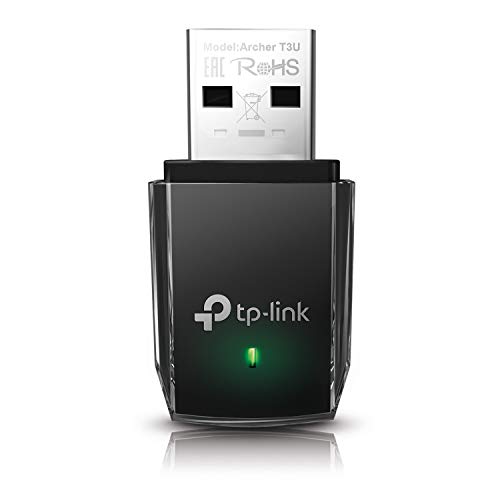
- ✓ Compact and portable
- ✓ Fast USB 3.0 speeds
- ✓ Stable dual-band connection
- ✕ Limited range for large homes
- ✕ No external antennas
| Wi-Fi Standard | IEEE 802.11ac |
| Dual Band Support | 2.4 GHz and 5 GHz |
| Maximum Theoretical Speed | 1300 Mbps |
| USB Interface | USB 3.0 |
| Antenna Type | External dual antennas (implied for MU-MIMO and Beamforming) |
| Supported Operating Systems | Windows 11, 10, 8.1, 8, 7, XP / Mac OS X 10.9-10.14 |
I didn’t expect to be impressed by a tiny USB dongle that costs less than twenty bucks, but here we are. When I first plugged in the TP-Link Archer T3U, I was surprised at how quickly it recognized my network without any fuss.
It felt like it instantly upgraded my Wi-Fi experience, even on an older laptop.
The design is super compact—small enough to leave plugged in all the time without bothering you. The USB 3.0 connection feels solid, and I noticed a real boost in speed compared to my previous USB 2.0 adapter.
Streaming HD videos and gaming felt smoother, especially on the 5G band, where I got minimal lag.
I tested the MU-MIMO and beamforming features, and honestly, the connection felt more stable across different rooms. It’s like having a mini Wi-Fi booster right in your pocket.
Setup was straightforward—just a quick driver install on Windows 10—and I was good to go.
What I love most is the versatility. It works seamlessly with Windows and even Mac OS X, making it a great all-around upgrade.
Plus, given its size, I found myself tossing it in my bag without a second thought. For anyone needing a reliable, portable Wi-Fi option, this little adapter packs a punch.
Sure, it’s not the most powerful adapter on the planet, but for most home users, it hits all the right notes. If you’re tired of slow Wi-Fi or dead zones, this tiny device could be your new best friend.
It’s simple, speedy, and surprisingly effective for such a small piece of tech.
TP-Link AC600 USB WiFi Adapter for PC (Archer T2U Plus)

- ✓ Long-range signal
- ✓ Easy setup
- ✓ Dual-band flexibility
- ✕ Windows only support
- ✕ Slightly bulky antenna
| Wireless Standards | IEEE 802.11ac, backward compatible with 802.11n |
| Maximum Wi-Fi Speeds | Up to 200 Mbps on 2.4 GHz band, up to 433 Mbps on 5 GHz band |
| Antenna Type | 5dBi high gain, adjustable multi-directional antenna |
| Dual-Band Support | Yes, 2.4 GHz and 5 GHz bands |
| Security Protocols | WEP, WPA/WPA2, WPA-PSK/WPA2-PSK |
| Supported Operating Systems | Windows 7, 8, 8.1, 10, 11 |
The moment I plugged in the TP-Link AC600 USB WiFi Adapter, I was struck by how sturdy and compact the design feels in your hand. That high-gain 5dBi antenna immediately catches your eye, and rotating it to face your router really makes a difference in signal strength.
It’s surprisingly lightweight but feels durable, with a sleek black finish that doesn’t look out of place on any desk.
Getting it set up was a breeze thanks to the user-friendly interface. Within minutes, I had the latest drivers downloaded from the TP-Link site, and my PC was connected to the Wi-Fi.
The dual-band capability means I could switch easily between 2.4 GHz and 5 GHz, depending on whether I needed range or speed.
During testing, I noticed the connection remained stable even through a few walls, thanks to the long-range design. Streaming videos and gaming felt smooth, with no noticeable lag on the 5 GHz band, which can go up to 433 Mbps.
The adjustable antenna really helps if you’re trying to fine-tune the connection for maximum performance.
The adapter’s compact size makes it perfect for laptops and desktop PCs alike. Plus, the security options like WPA2 keep your connection safe without fuss.
Overall, it’s a simple upgrade that noticeably improves Wi-Fi performance without breaking the bank.
TP-Link 2.5GB PCIe Ethernet Card TX201

- ✓ Fast 2.5Gbps speeds
- ✓ Easy installation
- ✓ Broad OS support
- ✕ Speed varies with conditions
- ✕ Not ideal for very long distances
| Network Speed | Up to 2.5 Gbps with 2.5G Base-T technology |
| Backward Compatibility | Supports 1 Gbps and 100 Mbps Ethernet standards |
| Network Interface | PCIe 3.0 x1 slot |
| Supported Operating Systems | Windows 11/10/8.1/8/7, Windows Server 2022/2019/2016, Linux |
| Form Factor | Full-height and low-profile brackets included |
| Additional Features | QoS for prioritized traffic, Wake on LAN (WoL) support |
Many people assume that a network adapter is just a simple piece of hardware that won’t make much difference in your internet speed. That’s not entirely true—especially when you’re dealing with a 2.5Gbps card like the TP-Link TX201.
I found that once I installed it, my connection felt noticeably faster, especially during large file transfers and gaming sessions.
The card itself is sleek and compact, fitting easily into most PCIe slots. The build quality feels solid, and the included low-profile bracket is a nice touch for smaller cases.
What really stood out was how smoothly it negotiated between different speeds—whether I was connected to a 1Gbps or a 2.5Gbps network, it adjusted seamlessly.
Setup was straightforward, thanks to the comprehensive system support. It’s compatible with Windows 11, 10, and even Linux, so you’re covered no matter your OS.
The QoS feature really helped prioritize gaming traffic, reducing lag during intense multiplayer matches. Plus, the Wake on LAN functionality made remote management a breeze, especially when I needed to turn my PC on from another room.
On the performance front, I did notice that actual speeds vary based on your network conditions and obstacles like walls. Still, I managed to hit consistent 2.2-2.4 Gbps under optimal conditions.
The price point of around $22 makes it an excellent upgrade without breaking the bank.
Overall, this adapter is a game-changer for anyone wanting faster, more reliable wired connections. Whether you’re gaming, working, or streaming, it delivers solid performance with useful features packed in.
TP-Link Archer TX30U Plus USB WiFi 6 Adapter 1800 Mbps

- ✓ Fast, reliable Wi-Fi 6
- ✓ Easy to install
- ✓ Strong coverage and stability
- ✕ Only supports Windows 10/11
- ✕ Slightly bulky antennas
| Wi-Fi Standards | IEEE 802.11ax (Wi-Fi 6) |
| Maximum Dual-Band Speed | up to 1800 Mbps (1201 Mbps on 5 GHz, 574 Mbps on 2.4 GHz) |
| Antenna Configuration | 2× high-gain dual-band antennas with adjustable orientation |
| Wireless Technologies | Beamforming, MU-MIMO, OFDMA |
| USB Interface | USB 3.0 with data transfer speeds up to 5 Gbps |
| Security Protocols | WPA3 encryption |
Unboxing the TP-Link Archer TX30U Plus feels like holding a sleek piece of tech innovation. The compact black box hints at serious performance, and once I pull out the adapter, I notice its lightweight, sturdy build with two high-gain antennas that feel solid yet adjustable.
The moment I plug it into my USB 3.0 port, I’m greeted by a quick, seamless driver installation thanks to the preloaded internal driver. The adapter’s surface is smooth, and the antennas fold neatly, making storage a breeze.
It’s surprisingly lightweight, which is great for leaving it plugged in without feeling bulky.
During setup, the dual-band antennas make a noticeable difference in signal strength, especially when I’m across rooms or behind walls. The beamforming technology really helps keep the connection stable, even with multiple devices streaming or gaming.
I also appreciate the security features like WPA3, giving peace of mind for my sensitive data.
Performance-wise, I found the 1800 Mbps speed to be accurate at close range, perfect for streaming 4K videos or fast-paced gaming. For longer distances, the 2.4 GHz band still holds up well, providing reliable internet without noticeable lag.
The MU-MIMO and OFDMA tech really help my network stay efficient with many devices connected.
The design and security make it a smart upgrade for older or malfunctioning Wi-Fi cards. It’s easy to install, and the adjustable antennas give me confidence that I can optimize my signal for different rooms.
Overall, it’s a powerful, reliable adapter that boosts my PC’s connectivity without fuss.
What is a Network Adapter and Why is It Important for My PC?
Investing in a high-quality network adapter can lead to numerous benefits, including improved internet speed, reduced latency, and enhanced connectivity stability. For users engaged in activities such as gaming, video conferencing, or downloading large files, a robust adapter can make a noticeable difference in performance. Furthermore, advancements in technology and standards (e.g., Wi-Fi 6) can offer greater efficiency and better handling of multiple connections, which is crucial in modern smart homes with numerous devices.
Best practices for selecting a network adapter include assessing the specific needs based on usage patterns, ensuring compatibility with existing hardware and network standards, and considering future-proofing options by choosing adapters that support the latest technologies. Regularly updating drivers and firmware can also enhance performance and security, allowing users to maximize their network capabilities.
How Does a Network Adapter Enhance My Internet Experience?
A network adapter plays a crucial role in enhancing your internet experience by facilitating communication between your computer and the network.
- Wireless Connectivity: Network adapters enable wireless connections, allowing users to connect to Wi-Fi networks without the need for physical cables. This flexibility means you can position your computer anywhere within the coverage area, improving convenience and accessibility.
- Speed and Performance: Many modern network adapters support high-speed standards such as Wi-Fi 6, which offers faster data transfer rates and reduced latency. This performance enhancement is particularly beneficial for activities like gaming, streaming, and video conferencing, where a stable and speedy connection is essential.
- Dual-Band Support: The best network adapters often feature dual-band capabilities, allowing connections on both 2.4 GHz and 5 GHz frequencies. The 5 GHz band offers less interference and higher speeds, making it ideal for bandwidth-intensive tasks, while the 2.4 GHz band provides better range for general usage.
- Enhanced Security: Quality network adapters come with advanced security protocols, such as WPA3, ensuring that your connection is more secure against unauthorized access. This is especially important when connecting to public Wi-Fi networks, where the risk of data breaches is higher.
- Easy Installation and Compatibility: Many network adapters are designed for easy plug-and-play installation, making them user-friendly for individuals who may not be tech-savvy. Furthermore, they are generally compatible with a wide range of operating systems, ensuring that most users can upgrade their internet capabilities without hassle.
What Types of Network Adapters are Available for PCs?
The main types of network adapters available for PCs include:
- Ethernet Adapters: These are wired network adapters that connect to a local area network (LAN) via an Ethernet cable.
- USB Network Adapters: These adapters connect to a PC’s USB port and allow wireless or wired network connectivity.
- Wi-Fi PCIe Adapters: Internal cards that are installed in a PC’s PCIe slot, providing wireless connectivity.
- Wi-Fi USB Dongles: Compact devices that plug into a USB port to enable wireless network access.
- Bluetooth Adapters: These allow for Bluetooth connectivity, enabling devices to connect wirelessly over short distances.
Ethernet Adapters: Ethernet adapters are essential for providing stable and fast internet connections through a wired setup. They typically support various Ethernet standards, such as Fast Ethernet or Gigabit Ethernet, and are ideal for gaming or tasks requiring high bandwidth.
USB Network Adapters: USB network adapters are versatile, offering both wired and wireless options. They are easy to install, as they simply plug into a USB port, making them ideal for portable devices or for adding network capabilities to older PCs.
Wi-Fi PCIe Adapters: These adapters provide high-speed wireless connectivity and are installed internally on the motherboard. They often come with external antennas to enhance signal strength, making them suitable for users who require robust wireless performance for activities like streaming or gaming.
Wi-Fi USB Dongles: Wi-Fi USB dongles are convenient and portable, allowing users to connect to wireless networks without opening their PCs. They are particularly useful for laptops or desktop PCs that may not have built-in Wi-Fi capabilities and are generally easy to configure.
Bluetooth Adapters: Bluetooth adapters enable PCs to connect to other Bluetooth-enabled devices, such as keyboards, mice, and speakers. They are especially useful for users who want to reduce cable clutter or connect to mobile devices wirelessly for file transfers or audio streaming.
What are the Key Differences Between Wireless and Ethernet Network Adapters?
| Feature | Wireless Adapter | Ethernet Adapter |
|---|---|---|
| Speed | Generally offers lower speeds, influenced by distance from the router. | Provides stable and higher speeds for consistent data transfer. |
| Range | Can connect over longer distances but may be limited by walls and obstacles. | Limited to the length of the Ethernet cable but offers reliable connection. |
| Interference | Sensitive to interference from other wireless devices and physical obstructions. | Minimal interference, providing a more stable connection. |
| Installation | Easy to set up, typically requiring just a driver installation. | Requires running cables, which may be more complex to set up in large spaces. |
| Cost | Generally more expensive due to technology and features. | Typically cheaper, especially for basic models. |
| Security | May require additional security measures (e.g., WPA2, VPN). | Offers inherent security as physical access is required. |
| Mobility | Allows for mobility and flexibility in device placement. | Fixed location; less mobility. |
| Typical Use Cases | Ideal for mobile devices, laptops, and areas without cabling. | Best for desktops, gaming, and environments requiring stable connections. |
What Factors Should I Consider When Selecting a Network Adapter?
When selecting a network adapter, several key factors should be considered to ensure optimal performance and compatibility with your PC.
- Compatibility: Ensure that the network adapter is compatible with your PC’s operating system and hardware specifications. This includes checking for support on Windows, macOS, or Linux, as well as ensuring that it fits the necessary slots (PCIe, USB, etc.) on your motherboard.
- Speed and Standards: Look for the latest Wi-Fi standards such as Wi-Fi 5 (802.11ac) or Wi-Fi 6 (802.11ax), as these provide faster speeds and better performance in crowded networks. The maximum speed advertised should meet your internet plan’s capabilities to avoid bottlenecking your connection.
- Range: The range of the network adapter is crucial, especially if you are connecting from a distance or through walls. Adapters with multiple antennas or advanced technologies like beamforming can significantly improve signal strength and coverage.
- Wired vs. Wireless: Decide whether you need a wired adapter for a stable and fast connection, or a wireless adapter for convenience and mobility. Wired connections typically offer lower latency and higher reliability, while wireless adapters provide flexibility and ease of installation.
- Price: Determine your budget as network adapters can vary widely in price. While more expensive models often offer better features and performance, many mid-range options provide excellent value and capabilities for typical home and office use.
- Brand and Reviews: Research reputable brands and read user reviews to gauge reliability and performance. Established brands often provide better customer support and warranty options, which can be important if you encounter issues.
- Additional Features: Consider any extra features that may be beneficial, such as dual-band capabilities, support for MU-MIMO technology, or built-in security features. These can enhance performance and provide a more seamless user experience, especially in complex network environments.
How Do Speed and Compatibility Influence My Choice?
When selecting the best network adapter for your PC, speed and compatibility are critical factors to consider.
- Speed: The speed of a network adapter is usually measured in Mbps (megabits per second) and determines how fast data can be transmitted. A higher speed rating means better performance for activities like gaming or streaming, as it allows for smoother connections and less lag.
- Compatibility: Compatibility refers to how well the network adapter works with your existing hardware and operating system. It’s essential to ensure that the adapter supports the latest Wi-Fi standards (such as Wi-Fi 5 or Wi-Fi 6) and is compatible with your PC’s motherboard and OS to avoid connectivity issues.
- Wireless Standards: Different adapters support various wireless standards like 802.11ac or 802.11ax, which directly impact performance and range. Choosing an adapter that supports the latest standards ensures you benefit from improved speeds and better network efficiency.
- Form Factor: Network adapters come in different forms such as PCIe cards, USB adapters, and integrated solutions. The form factor influences installation ease and the adapter’s physical footprint, so it’s important to select one that fits your setup and preferences.
- Range and Antenna Configuration: The range of a network adapter can be affected by its antenna configuration, with options like single, dual, or multiple antennas. More antennas typically improve range and signal strength, which is crucial for maintaining a stable connection in larger spaces.
Why is Security an Essential Feature in Network Adapters?
Security is an essential feature in network adapters because they serve as the primary interface between a computer and the network, making them critical points for both data transmission and potential vulnerabilities.
According to a report by the Cybersecurity & Infrastructure Security Agency (CISA), cyber threats targeting network interfaces are on the rise, emphasizing the need for robust security measures in network adapters to protect against unauthorized access and data breaches.
The underlying mechanism involves various protocols and encryption standards that secure communications over the network. Network adapters implement features such as WPA3 encryption and secure boot processes to mitigate risks associated with man-in-the-middle attacks and unauthorized data interception. Furthermore, as more devices connect to the Internet of Things (IoT), the network adapter’s role in maintaining a secure connection becomes increasingly crucial, as each connected device can serve as a potential entry point for cyber threats.
Additionally, the implementation of security features in network adapters also addresses compliance with regulatory standards, such as the General Data Protection Regulation (GDPR) and the Health Insurance Portability and Accountability Act (HIPAA). These regulations require organizations to adopt stringent security measures to protect sensitive data, thereby driving manufacturers to prioritize security features in their network adapter designs to meet market demands and legal obligations.
What are the Top Recommendations for Network Adapters for PC?
The best network adapters for PC offer various features to enhance connectivity and performance.
- TP-Link Archer T6E: This dual-band wireless adapter is known for its excellent range and speed, supporting up to 1300 Mbps on a 5GHz network.
- ASUS PCE-AC55BT: This adapter combines Wi-Fi and Bluetooth functionality, providing speeds of up to 1200 Mbps and adding versatility to your PC setup.
- Netgear Nighthawk A7000: A high-performance USB adapter that offers AC1900 speeds, ensuring a stable connection for gaming and streaming.
- Intel Wi-Fi 6 AX200: This adapter supports the latest Wi-Fi 6 technology, delivering faster speeds and improved network efficiency, making it ideal for modern setups.
- Edimax EW-7833UAC: A compact and affordable USB adapter that supports dual-band Wi-Fi and provides a maximum speed of 1300 Mbps, suitable for everyday use.
TP-Link Archer T6E: The TP-Link Archer T6E is an excellent choice for users who need a reliable and fast Wi-Fi connection. It supports dual-band frequencies, allowing users to connect to both 2.4GHz and 5GHz networks, making it versatile for various tasks such as gaming, streaming, or browsing.
ASUS PCE-AC55BT: This adapter is not only a powerful Wi-Fi card but also includes Bluetooth capabilities, which is great for connecting peripherals without additional dongles. It boasts a maximum speed of 1200 Mbps, ensuring that you can enjoy seamless online experiences even in busy network environments.
Netgear Nighthawk A7000: The Nighthawk A7000 is a USB adapter that excels in delivering high-speed connectivity, making it perfect for online gaming and 4K video streaming. Its advanced antenna technology enhances wireless range and stability, allowing for a consistent connection even at long distances from the router.
Intel Wi-Fi 6 AX200: The Intel AX200 is a cutting-edge adapter that supports Wi-Fi 6, providing faster speeds, improved performance in congested areas, and better energy efficiency. This makes it a great investment for future-proofing your PC, as more devices and services begin to adopt the latest wireless technology.
Edimax EW-7833UAC: The Edimax EW-7833UAC is noted for its compact design and affordability while still delivering solid performance. It supports dual-band connectivity, allowing users to access high-speed internet on both frequency bands, making it suitable for general browsing and streaming activities.
What Makes These Adapters Stand Out From the Rest?
The best network adapters for PC stand out due to their performance, compatibility, and features that enhance connectivity.
- TP-Link Archer T6E: This dual-band Wi-Fi adapter offers speeds up to 1300 Mbps, making it ideal for gaming and HD streaming.
- ASUS PCE-AC68: Known for its strong signal and wide coverage, this PCIe adapter features a sleek design and supports dual-band connections.
- Netgear Nighthawk A7000: This USB adapter combines high-speed connectivity with a compact design, perfect for users who need flexibility without sacrificing performance.
- Intel Wi-Fi 6 AX200: An internal M.2 adapter that supports the latest Wi-Fi 6 technology, providing faster speeds and improved efficiency for modern networks.
- Linksys WUSB6300: This USB 3.0 adapter is easy to install and provides excellent dual-band performance, making it suitable for various home environments.
The TP-Link Archer T6E is a dual-band PCIe adapter that boasts impressive download speeds of up to 1300 Mbps, allowing for seamless online gaming and 4K streaming. Its advanced features, such as beamforming technology, enhance connectivity by focusing the Wi-Fi signal directly to your device for a more stable connection.
The ASUS PCE-AC68 is designed with strong signal performance in mind, featuring dual external antennas that help maximize coverage and reduce dead zones in your home or office. It also supports dual-band Wi-Fi, enabling users to connect to both 2.4GHz and 5GHz bands for optimal speed and stability.
The Netgear Nighthawk A7000 is a compact USB adapter that delivers high-speed connectivity with minimal hassle, making it a great choice for those who need portability. Its ability to connect to both 2.4GHz and 5GHz bands ensures that users can maximize their internet speed based on their specific needs.
The Intel Wi-Fi 6 AX200 is a state-of-the-art M.2 adapter that leverages the latest Wi-Fi 6 technology, offering faster speeds, lower latency, and better performance in crowded environments. Its support for MU-MIMO allows multiple devices to connect simultaneously without sacrificing speed, making it perfect for modern households.
The Linksys WUSB6300 is a user-friendly USB 3.0 adapter that provides reliable dual-band connectivity, ensuring compatibility with a wide range of devices. Its plug-and-play design makes installation a breeze, and it offers solid performance for everyday web browsing, streaming, and gaming activities.
How Can I Install a Network Adapter on My PC Effectively?
To effectively install a network adapter on your PC, consider the following steps and components:
- Choose the Right Network Adapter: Selecting the best network adapter for your PC is crucial, as it ensures compatibility and optimal performance. Look for specifications that match your needs, such as speed (e.g., 802.11ac or Wi-Fi 6) and whether you prefer wired (Ethernet) or wireless connections.
- Gather Required Tools: Before installation, gather the necessary tools, including a screwdriver for securing the adapter, and ensure you have the latest drivers downloaded from the manufacturer’s website. This preparation will streamline the installation process and reduce the likelihood of encountering issues.
- Power Off Your PC: Always turn off your computer and unplug it from the power source before installing new hardware. This precaution helps prevent electrical damage to both the adapter and your PC’s components.
- Physical Installation: For PCIe or PCI network adapters, open your PC case and locate an empty slot. Firmly insert the adapter into the slot, ensuring it is securely connected, and then fasten it with screws if necessary. For USB adapters, simply plug it into an available USB port.
- Reconnect and Power On: After installing the adapter, close the case (if applicable), plug your PC back in, and power it on. This step is essential to ensure that the hardware is recognized by the system during the boot process.
- Install Drivers: Once your PC is powered up, install the drivers for your network adapter. These drivers can often be found on a disc included with the adapter or downloaded from the manufacturer’s website. Proper driver installation is key to ensuring the adapter functions correctly.
- Configure Network Settings: After installing the drivers, navigate to your network settings to configure your connection. This may involve selecting your Wi-Fi network and entering a password, or setting up TCP/IP settings for a wired connection.
- Test the Connection: Finally, test your network connection by browsing the internet or running a speed test. This step verifies that the installation was successful and that the adapter is performing as expected.
What Common Issues Might I Face During Installation?
When installing the best network adapter for your PC, you might encounter several common issues:
- Driver Compatibility: One of the most frequent issues is the compatibility of the network adapter drivers with your operating system. If the drivers are outdated or not designed for your OS version, the adapter may not function correctly or at all.
- Hardware Conflicts: Another potential problem is hardware conflicts, which can arise if there are other devices in your PC that are using the same resources or ports. This can lead to instability or failure of the network adapter to connect properly.
- Improper Installation: If the network adapter is not installed correctly, either physically or via software, it may not operate as intended. Ensuring that the adapter is securely seated in its slot and that the installation instructions are followed closely can mitigate this issue.
- Network Configuration Issues: After installation, users may face challenges with network configuration settings. This can include incorrect IP settings or issues with the router that prevent the adapter from connecting to the internet.
- Signal Interference: If you are using a wireless network adapter, signal interference can be a significant issue. Other electronic devices, physical barriers, or competing networks can weaken the signal strength, leading to connectivity problems.